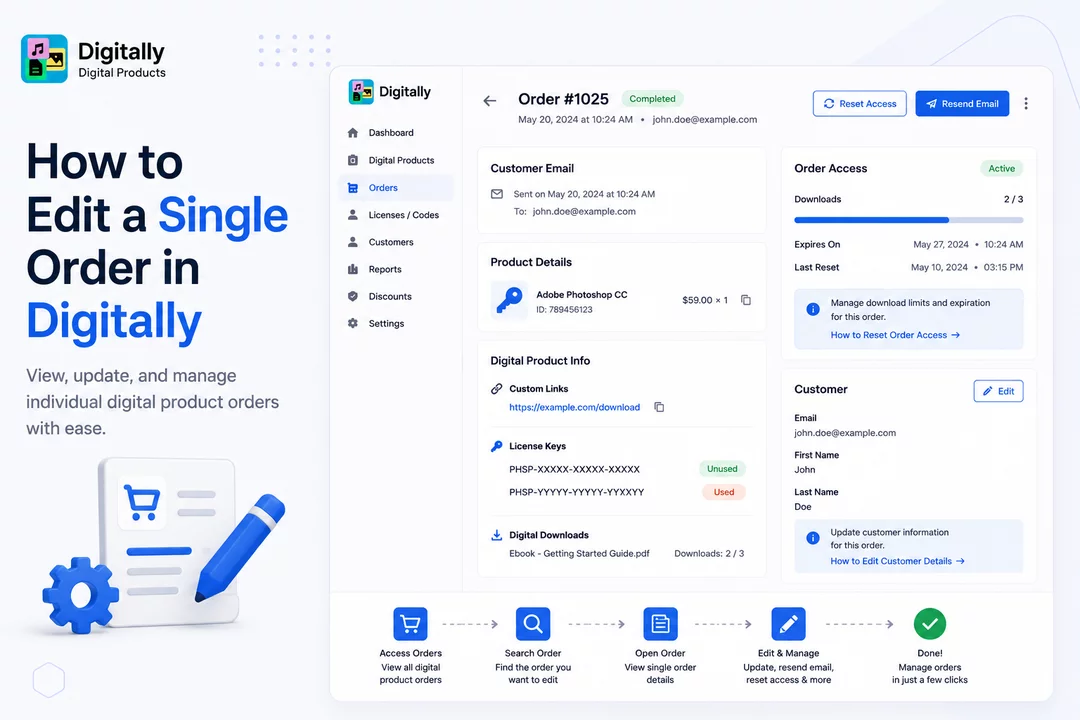
Editing and managing individual orders is simple in the Digitally – Digital Products app. Follow these steps to view, update, and take action on a specific order from your Shopify store.
✅ Step 1: Access the Orders Page
Open the Digitally – Digital Products app from your Shopify admin.
Navigate to the Orders page where all digital product orders are listed.

✅ Step 2: Search for the Order
Use the search bar at the top of the Orders page to find the specific order you want to edit.
You can search by:
- Order number
- Customer’s name
- Product name
Once found, click on the order number to open the Single Order Details Page.

✅ Step 3: Understand the Order Header
At the top of the single order page, you’ll see:
- The Order Number
- The Order Status
- The Order Creation Date (just below)

To the top-right, there are two important buttons:
🔄 Reset Access
Use this when a customer asks for:
- More download attempts
- Extended expiration dates for their digital product
[See this guide → How to Reset Order Access in Digitally - Digital Products]

📧 Resend Email
Use this if:
- The customer didn’t receive the original email
- You’ve disabled email delivery by default
See these guide →
[How to Give or Reset Order Access in the Digitally – Digital Products App]
[How to Enable or Disable Email Notifications for Digital Product Purchases in Digitally]

✅ Step 4: View Order Details (Left Side)
In the left section, you’ll see:
- Customer Email: When and to whom the email was originally sent
- Product Details: Name, price, product ID, and quantity
- Digital Product Info:
- Custom links
- License keys (with “Used” and “Unused” indicators)
- Digital downloads (e.g., images, eBooks) with total downloads count
💡 For license key management, including marking keys as used or restocking them:
[See this guide → How to Restock Unused Keys/Codes in Digitally - Digital Products]

✅ Step 5: Manage Order Access and Customer Info (Right Side)
On the right, you’ll find two important cards:
🔓 Order Access
Shows delivery access details for the order.
[See this guide → How to Reset Order Access in Digitally - Digital Products]

👤 Customer Card
You can edit customer information related to the order here.
[See this guide → How to Edit Customer details in Orders in Digitally - Digital Products]

🎉 That’s It!
You now know how to navigate and manage individual orders in the Digitally – Digital Products app. Whether it's resending emails, managing license keys, or editing customer info — it's all just a few clicks away!



