How to Connect Your Wistia Account with Digitally – Digital Products
Follow these steps to connect your Wistia account with the Digitally – Digital Products app. Once connected, you can securely stream your Wistia-hosted videos to customers through your Shopify store.
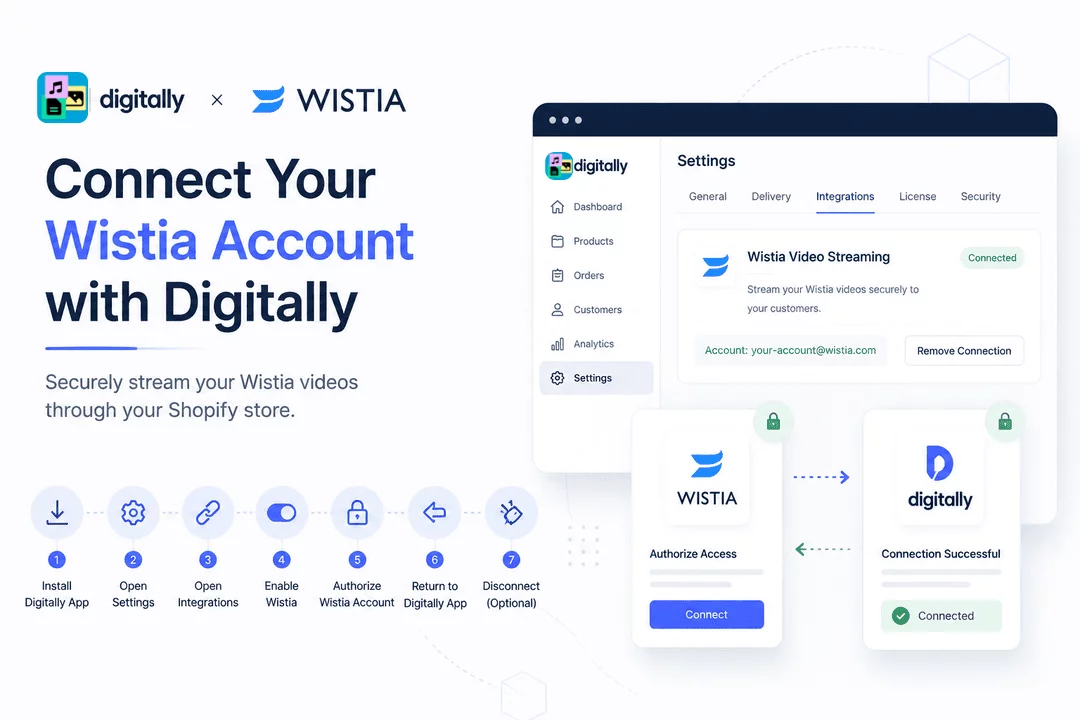
Follow the steps below to connect your Wistia account with the Digitally – Digital Products app and securely stream your Wistia videos through your Shopify store.
📥 Step 1: Install the Digitally App
Install the Digitally – Digital Products app from your Shopify Admin if you haven't already.
⚙️ Step 2: Open the App Settings
Open the Digitally – Digital Products app from your Shopify Admin, then navigate to Settings.

🔗 Step 3: Open the Integrations Tab
Click the Integrations tab and locate the Wistia Video Streaming Integration card.


🔌 Step 4: Enable the Wistia Integration
Turn on the Wistia Integration toggle, then click the Connect Wistia button.

🔐 Step 5: Authorize Your Wistia Account
You will be redirected to the Wistia authorization page.
- If you are not signed in to your Wistia account, log in first and then authorize the connection.

- If you are already signed in, simply click Connect, and your account will be connected immediately without being asked to sign in again.
↩️ Step 6: Return to the Digitally App
After successfully authorizing your Wistia account, you will be automatically redirected back to the Digitally – Digital Products app in Shopify.

🔌 Step 7: Disconnect Your Wistia Account (Optional)
If you ever want to disconnect your Wistia account, simply click the Remove Connection button on the Wistia Video Streaming Integration card.

🎉 You're All Set!
Your Wistia account is now successfully connected to Digitally – Digital Products. You can now securely stream your Wistia-hosted videos to customers through your Shopify store.



