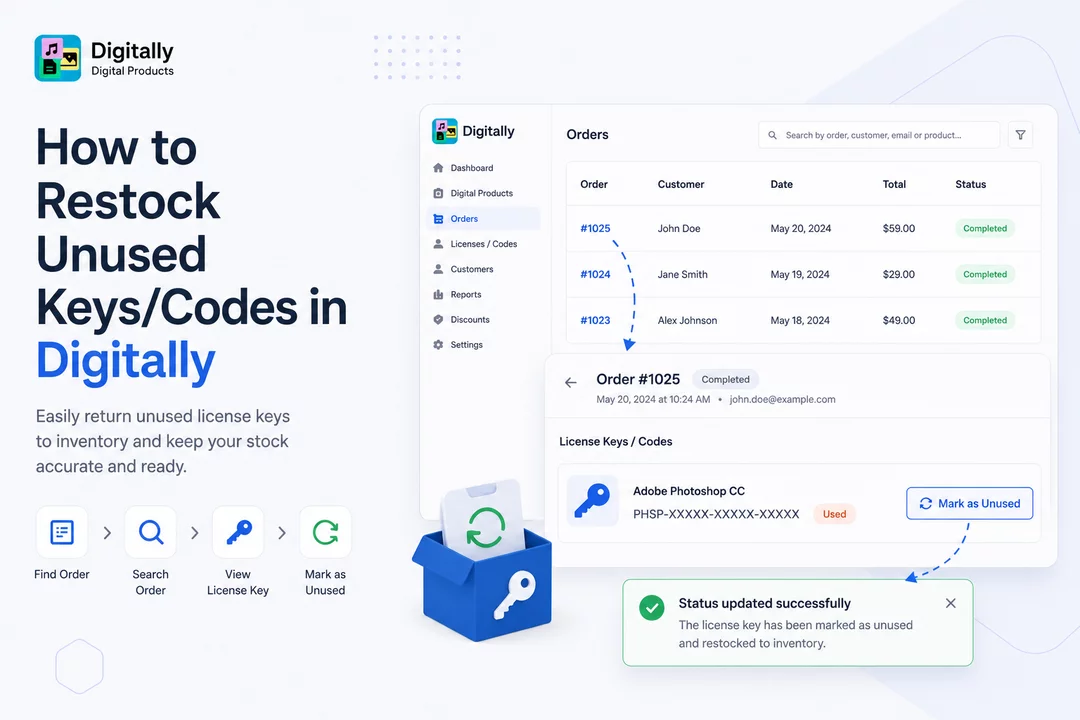
Need to return an unused license key or code back to your inventory? Here’s how to quickly restock it using the Digitally – Digital Products app.
✅ Step 1: Open the Orders Page
Log into your Shopify store and open the Digitally – Digital Products app.
Navigate to the Orders page to view all digital product orders.

✅ Step 2: Find the Order with License Keys
In the orders list, only orders with digital products will be displayed.
Look for the specific order that contains license keys or codes.

✅ Step 3: Search for the Order
Use the search bar at the top to find the order by:
- Order number
- Customer’s first name
- Product name
Once located, click the order number to access the order details.

✅ Step 4: Restock the License Key
On the order page, locate the section showing the license key(s).
You’ll see a button labeled “Mark as Unused” next to a used key.
- Click “Mark as Unused” to restock the key back into the original product’s inventory.
- The button will change to “Mark as Used”, allowing you to toggle its status.
- A confirmation toast will appear, indicating the status has been successfully updated.

🎉 That’s It!
The license key is now restocked and available for future orders.
With Digitally – Digital Products, managing license codes is fast, flexible, and efficient.



