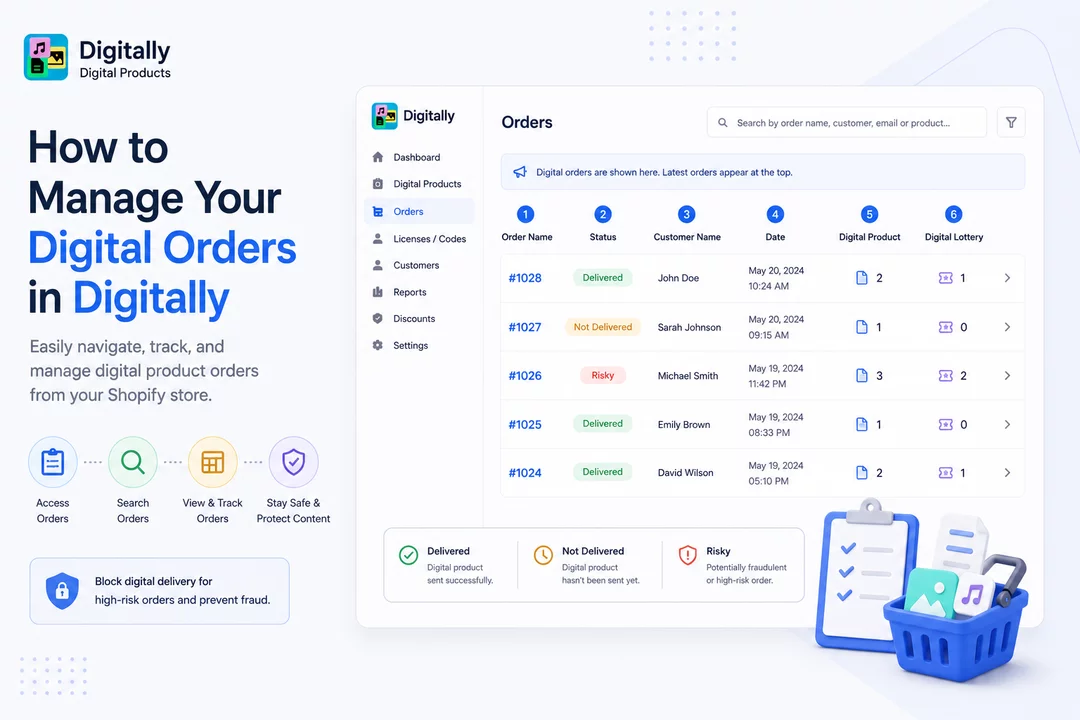
Managing your digital product orders is simple with the Digitally – Digital Products app. Follow this step-by-step guide to easily navigate and track digital orders placed through your Shopify store.
✅ Step 1: Access the Orders Page
Start by opening the Digitally – Digital Products app from your Shopify dashboard.
Once inside the app, go to the Orders page. This is where all your digital orders will be displayed.

✅ Step 2: View Your Digital Orders
On the Orders page, you'll see a list of all orders that include digital products.
Each time a digital order is placed, it automatically appears at the top of this table—so you’ll always see the most recent orders first.

✅ Step 3: Use the Search Feature
To quickly find a specific order, use the search bar located at the top of the Orders page.
You can search by:
- Order name
- Customer's first name
- Customer's email
- Product name
This makes it easy to locate orders, especially during high-volume sales periods.

✅ Step 4: Understand the Orders Table Columns
Below the search bar, you’ll find a detailed table listing all your digital orders. Here’s a breakdown of what each column means:
🧾 1. Order Name
Displays the unique order number associated with each purchase.

🚦 2. Status
Shows the delivery status of each order:
- Delivered: The digital product has been sent successfully.
- Not Delivered: The product hasn’t been sent yet.
- Risky: These are potentially fraudulent or high-risk orders.
🔐 Want to block digital delivery for risky orders?
You can enable the “Block Digital Content Delivery for High-Risk Orders” option in the settings. This feature helps protect your business from fraud by preventing automatic delivery for suspicious transactions. See this guide.
"How to Enable/Disable “Block Digital Content Delivery for High-Risk Orders”

👤 3. Customer Name
Displays the first and last name of the customer who placed the order.

📅 4. Date
Shows the date the order was placed.

💾 5. Digital Product
Indicates how many digital products are included in the order.
(Single or multiple digital files can be delivered.)

🎟️ 6. Digital Lottery
Shows how many digital lottery entries are part of the order, if any.

💡 Final Tips
- Keep your Orders page organized by using the search tool regularly.
- Monitor risky orders to protect your digital content.
- Use the status column to ensure customers receive their products promptly.
With these simple steps, you’ll be able to manage digital orders smoothly and efficiently using the Digitally – Digital Products app. If you need more help, feel free to reach out through the app's support.



