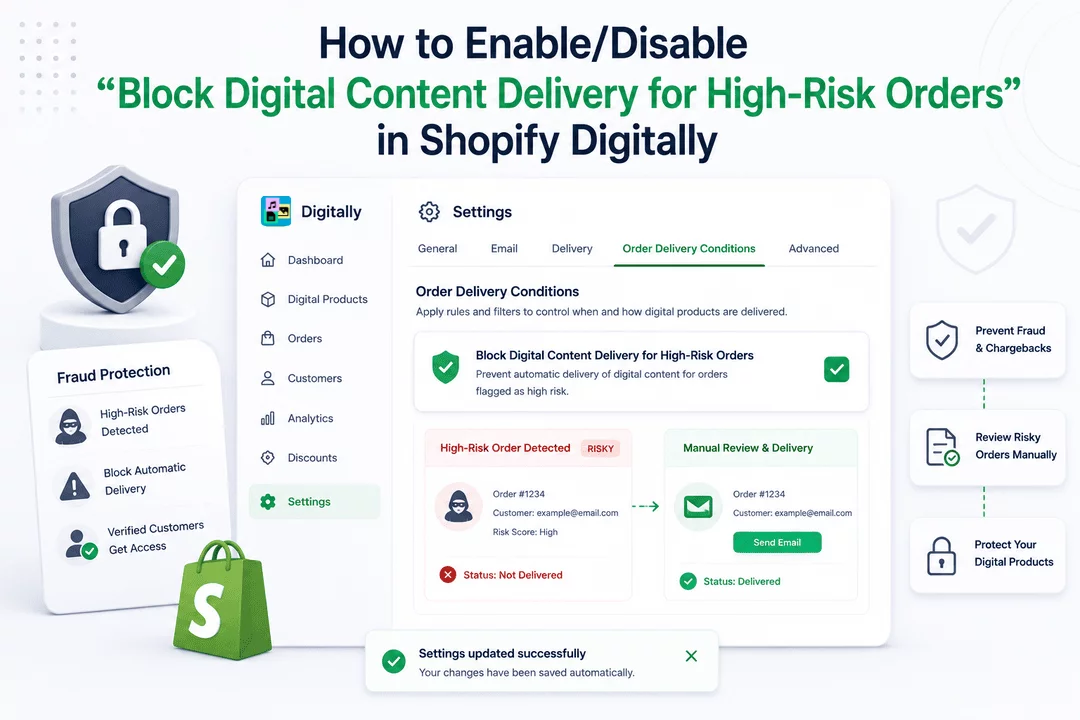
Protect your digital products from fraud and risky transactions. This setting allows you to block automatic delivery of digital content to high-risk orders, ensuring only verified customers get access.
Follow these steps to activate or deactivate this feature in your Digitally – Digital Products app.
⚙️ Step 1: Open the App Settings
- Go to your Shopify Admin and open the Digitally – Digital Products app.
- Click on the Settings tab from the left-hand sidebar or the top navigation.

💡 Pro Tip: The “Order Delivery Conditions” section in Settings is where you can apply smart filters to control when and how your digital products are sent.
🔍 Step 2: Locate the High-Risk Order Blocker
- Scroll down to the Order Delivery Conditions section.
- Find the checkbox labeled:
- “Block Digital Content Delivery for High-Risk Orders”

✅ Step 3: Enable or Disable the Feature
Option 1: ✅ Enable – Block High-Risk Orders (Recommended)
- Check the box to turn this setting ON.
- When enabled, any order flagged as “High Risk” by Shopify’s fraud analysis or the app's internal checks will not receive automatic digital delivery.
- These orders will appear in your Digitally app as:
- Marked as “Risky”
- Status: Not Delivered

📌 How This Works:
- High-risk orders may include:
- Incorrect personal or billing info
- Failed or suspicious payment attempts
- Known fraud patterns (e.g., bots or spoofed buyers)
💡 Pro Tip: To manually review a flagged order:
- Go to the Orders tab in the Digitally app.

- Click on the order number.

- On the right-hand side, click “Send Email” to manually deliver the product if you’ve verified the buyer is legitimate.

⚠️ Note: The status column will still show “Risky”, but the delivery status will change to Delivered once the email is sent.
Option 2: ❌ Disable – No Blocking (Not Recommended)
- Leave the box unchecked.
- All orders, including high-risk ones, will be allowed to automatically download digital content.
🚫 Risk: This can result in fraudulent downloads, chargebacks, or loss of digital goods to non-legit buyers.
💡 Pro Tip: Use this only if you have an external fraud system in place or are selling free products with minimal risk.
⚠️ Important Note:
This setting is disabled by default in the Digitally app. To protect your store and ensure only verified customers get your content, you must manually enable it from Settings as explained above.
💾 Step 4: Save Changes (No Button Needed)
No need to press a “Save” button—your changes are automatically saved when you check or uncheck the box.
You’ll see a success message like:
“Settings updated successfully”

💡 Pro Tip: Periodically check the Orders section in the Digitally app to monitor flagged high-risk orders and take manual action if needed.
🎉 You’re Protected!
You’ve now added a strong fraud prevention layer to your digital delivery flow. This ensures peace of mind, secures your content, and filters out suspicious activity—automatically.



