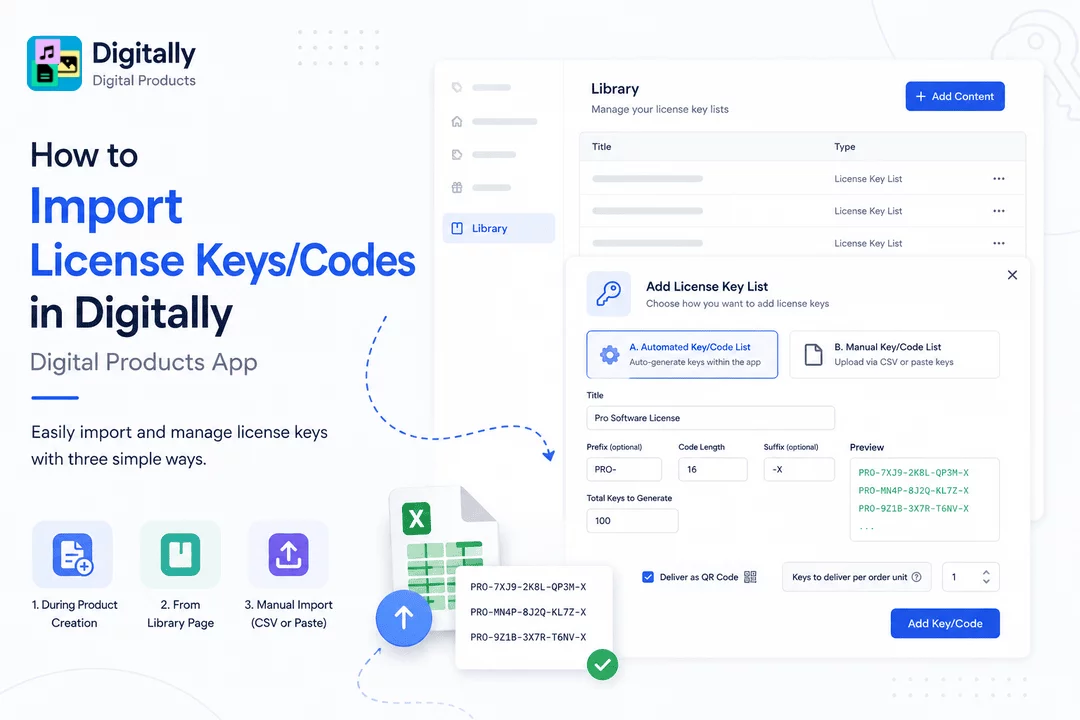
With Digitally – Digital Products, you can easily import and manage license keys to deliver digital codes efficiently. This guide walks you through three ways to import keys.
✅ Step 1: Go to the Library Page
Start by opening the Digitally – Digital Products app from your Shopify dashboard.
Navigate to the Library section to manage license key lists.

✅ Step 2: Three Ways to Add License Keys
There are three ways to upload license keys:
🔹 Method 1: While Creating a Digital Product
You can add license keys during product setup.
For full steps, see this guide:
👉 How to Add/Edit a License Key/Code in Digital Products in Digitally - Digital Products
🔹 Method 2: From the Library Page
Here’s how to add license keys directly from the Library.
✅ Step 3: Add License Keys via Library
- Click the Add Content button at the top-right of the Library page.

- In the modal that appears, select License Key List.

✅ Step 4: Choose License Key Type
You'll see two options for uploading keys:
🔐 A. Automated Key/Code List
Use this to auto-generate license keys within the app.
You’ll need to fill in:
- Title: Name for the key list
- Prefix (optional): Beginning of the key
- Code Length: Total number of characters
- Suffix (optional): End of the key
- Total Keys to Generate
- Preview will show how your keys will look
Options:
- ✅ Check “Deliver as QR Code” if you'd like customers to receive keys as scannable QR codes
- ✅ Set number of keys to deliver per order unit

Once done, click Add Key/Code to save the list to your Library.

📝 B. Manual Key/Code List
Use this option to upload license keys manually using one of two methods:

1. Upload via CSV File
- Click Upload CSV

- Choose your CSV file (You can download a template if needed)

- Optional settings:
- Deliver in Sequence Order
- Deliver as QR Code
- Number of Keys per Order Unit

- Click Add Key/Code to save.

2. Paste Keys Manually
- Click Paste Key/Code

- A text area will appear – paste one license key per line.

- Optional settings:
- Deliver as QR Code
- Number of Keys per Order Unit

- Click Add Key/Code to save the list.

✅ Step 5: Load More Keys to Existing List (Optional)
If you've already uploaded keys to a product and want to add more, follow this guide:
👉 How to Load More License Keys/Codes to the Library in Digitally – Digital Products
You can also edit existing license key lists by clicking the Edit button and following the same steps as above.

🎉 That’s It!
Your license keys are now successfully imported and stored in your Library for future product use. Whether you generate them automatically or import manually, managing keys has always been easier with Digitally – Digital Products.



