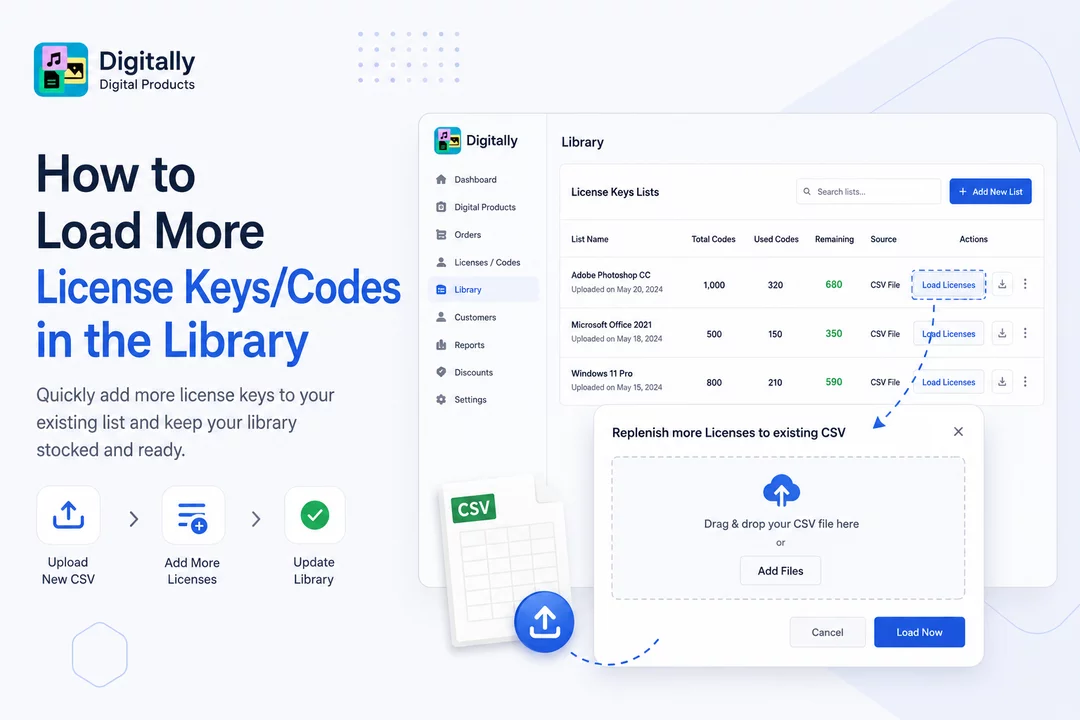
Need to restock your license key list? With Digitally – Digital Products, you can quickly load additional keys into your existing library entry. Here’s how:
✅ Step 1: Open the Library Page
From your Shopify dashboard, open the Digitally – Digital Products app.
Go to the Library page where all your license key lists are managed.

✅ Step 2: Locate Your License Key List
In the Library, find the License Keys List section.
Browse or search for the specific license key list you want to add more codes to.

✅ Step 3: Identify the Right List
You’ll see a table showing all previously uploaded license key lists.
Locate the one that was uploaded via CSV file—you can even download the current file if needed for reference.

✅ Step 4: Click the Load Licenses Button
On the row of your chosen license key list, click the Load Licenses button.
This option allows you to add more codes to an existing set.

✅ Step 5: Upload Your New File
A modal will appear titled Replenish more Licenses to existing CSV.
You can either:
- Drag and drop your new CSV file, or
- Click the Add Files button to browse and upload manually.

✅ Step 6: Confirm the Upload
After uploading your file, click the Load Now button to finalize the update.
⚠️ If you skip this step, your new keys won’t be saved.

🎉 That’s It!
You’ve successfully restocked your license keys. These new codes will now be available for product deliveries as needed.



