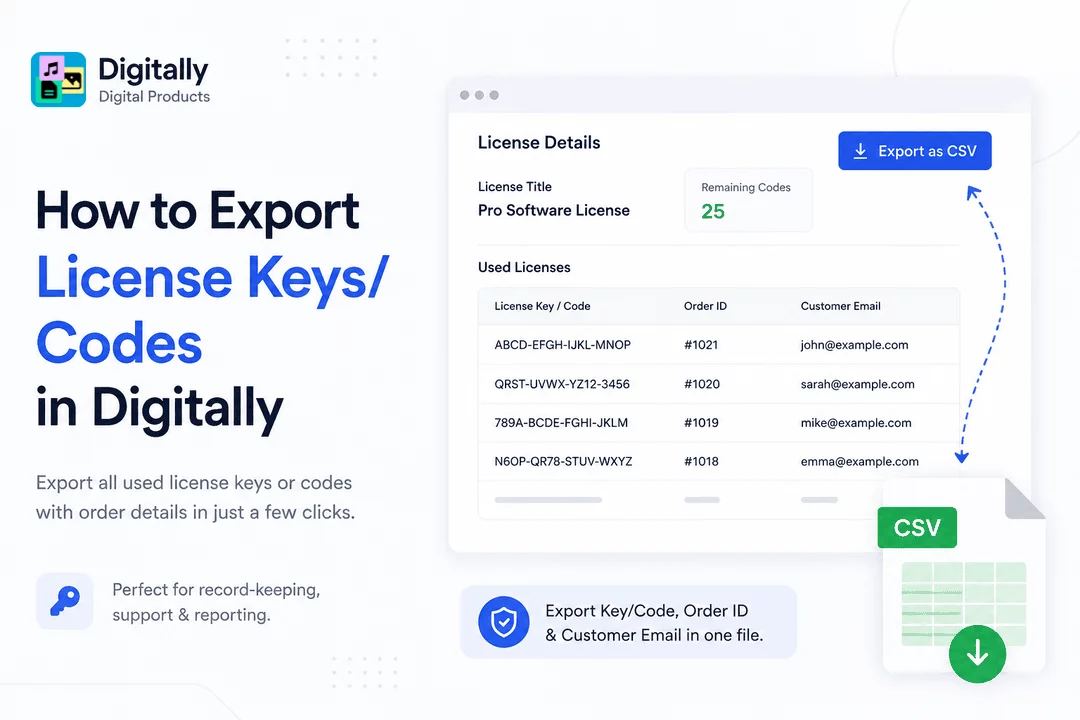
Want to export all your used license keys or codes along with order details? Follow this simple guide to quickly download them in just a few clicks using the Digitally – Digital Products app.
✅ Step 1: Open the Digital Products Page
Start by launching the Digitally – Digital Products app from your Shopify dashboard.
Then, click on “Digital Products” from the side menu to access your list of digital items.

🔍 Step 2: Find the Product with License Keys
On the Digital Products page, scroll or use the search bar to find the product that contains license keys or codes.
Next to the product name, you’ll see a “Keys/Codes” button—click it to continue.

🔑 Step 3: View License Details
Clicking the “Keys/Codes” button will open a License Details modal.
Here’s what you’ll find inside:
- 🔖 License Title at the top
- 📉 Remaining Codes – how many codes are still available
- 📋 Used Licenses Table with:
- License Key/Code
- Order ID
- Customer Email

See this guide on importing License Keys/Codes: 👉 [How to Import License Keys in the Library – Digitally Digital Products App]
📁 Step 4: Export Your Data
In the License Details modal, click the “Export as CSV” button.
This will instantly download an Excel file containing all the used license keys, along with:
- The Key/Code
- The Order ID
- The Customer Email

🎉 Step 5: Done!
You’ve now successfully exported your used license keys and related order information!
This is perfect for record-keeping, customer support, or reporting.



