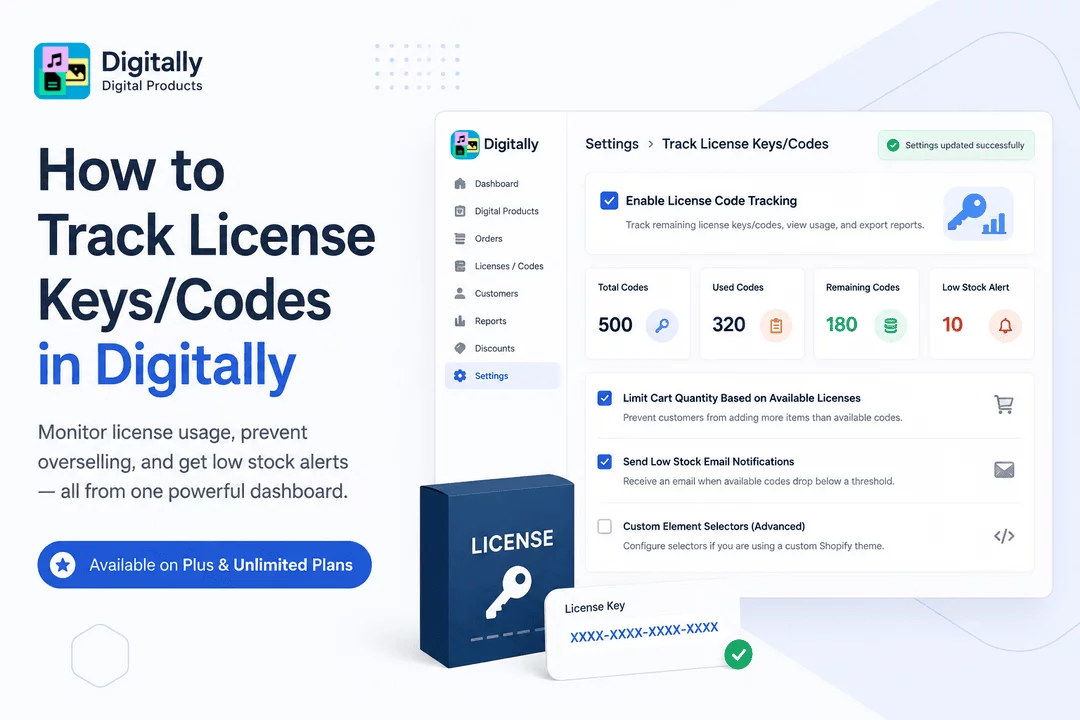
Easily manage your digital inventory with license/code tracking. This powerful feature allows you to monitor how many codes remain, prevent overselling, and receive low stock alerts—all inside your Digitally – Digital Products app.
⚠️ Note: This feature is only available on the Plus and Unlimited plans.
⚙️ Step 1: Open App Settings
- Log in to your Shopify Admin
- Open the Digitally – Digital Products app
- Click on the Settings tab from the sidebar or top menu

💡 Pro Tip: This section controls powerful features like license tracking, low stock alerts, and more for smoother digital product fulfillment.
🔁 Step 2: Upgrade Your Plan
If you're on the Free or Pro plan, you'll need to upgrade to Plus or Unlimited to unlock this feature.

To upgrade:
- Go to the Plans section in the Digitally app
- Choose your desired plan
- Complete the upgrade process


💡 Pro Tip: The Plus and Unlimited plan is ideal for stores actively selling licensed content like software, games, or access codes with stock limitations.
🔍 Step 3: Enable License Code Tracking
Once upgraded, go back to Settings > Track License Keys/Codes, and:
- ✅ Check the box for:
- “Enable License Code Tracking”

📌 What This Does:
- Tracks the number of remaining license keys/codes
- Displays used/unused codes with order ID & customer email
- Allows you to export key data as a CSV


💡 Pro Tip: After enabling this, visit your Digital Products tab to view product-specific tracking, usage status, and download/export reports.
🧩 Step 4: Optional Add-Ons Within This Feature
✅ Limit Cart Quantity Based on Available Licenses
- Prevents customers from adding more items to their cart than available codes
- A warning message will appear if they exceed the available limit

🎯 Why Use It:
Avoid refund requests or confusion by letting customers know in real-time that limited codes are left.
🎨 Optional: Custom Element Selectors (Advanced Use)
If you use a custom Shopify theme, configure these fields to ensure tracking and restrictions work properly on your storefront:
- Quantity Input Selector
- Add to Cart Button Selector
- Quantity Plus Button Selector
- Cart Drawer Plus Button Selector
- Cart Drawer Quantity Input Selector

💡 Pro Tip: Leave these at default unless your theme uses custom naming or layout elements for the cart.
✅ Send Low Stock Email Notifications
- Get notified when license code stock drops below your set threshold
To set up:
- Check the box for Send Low Stock Email Notifications
- Enter your email address for alerts
- Set the stock threshold number (e.g., 10)

💡 Pro Tip: Keep your stock fresh and never miss out on restocking opportunities. This is a great way to automate your inventory management.
⚠️ Important Note:
The Enable License Code Tracking feature is disabled by default.
You must manually activate it in Settings after upgrading your plan.
💾 Step 5: Save Changes (Automatic Save!)
No Save button is required. All changes are automatically saved once you check or uncheck any setting.
✅ A toast message will confirm:
“Settings updated successfully”

🎉 You’re Done!
You’ve now enabled full control over your license code inventory. Whether you sell software, event tickets, digital keys, or unlock codes—this tracking system will help you stay organized, avoid overselling, and maintain a smooth customer experience.



