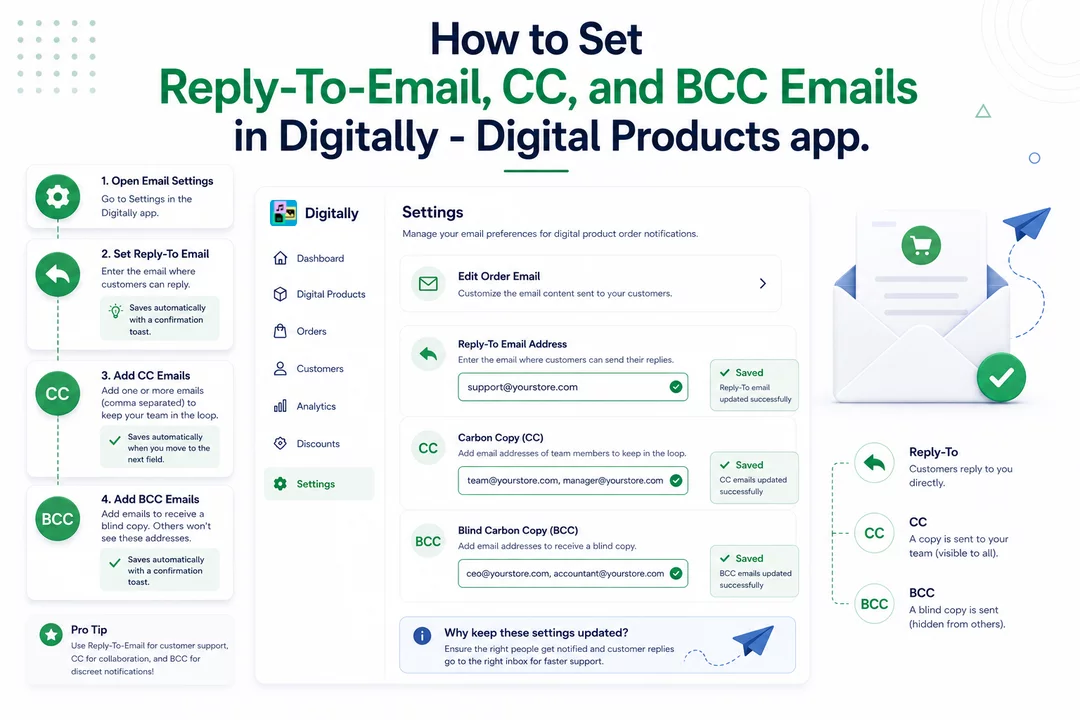
Keep your communication organized and make sure the right people get notified! Follow these simple steps to set up your email reply and copy settings.
✅ Step 1: Open Email Settings
Go to the Settings page in the Digitally app.

Below the Edit Order Email button, you’ll see three fields:
- Reply-To Email Address
- Carbon Copy (CC)
- Blind Carbon Copy (BCC)

✅ Step 2: Set the Reply-To Email
In the Reply-To Email Address field, enter the email where customers can send their replies.

💡 Note: This email will receive all replies when customers respond to the order email.
✔️ The email saves automatically once you click into the next field. A small pop-up (toast) will confirm it's saved.
✅ Step 3: Add Carbon Copy (CC) Emails
In the CC field, add the email addresses of team members you want to keep in the loop.
- You can add one or multiple emails
- Use a comma ( , ) to separate multiple addresses

📨 A copy of the email will be sent to everyone listed here.
✔️ Changes are saved automatically when you move to the next field.
✅ Step 4: Add Blind Carbon Copy (BCC) Emails
In the BCC field, add email addresses of team members you want to receive the email without other recipients seeing them.
- Add single or multiple emails
- Use a comma ( , ) to separate multiple addresses

🕵️ A blind copy will be sent to these addresses—recipients won’t see who else got it.
✔️ Saved automatically with a confirmation pop-up.
🧠 Pro Tip:
Use Reply-To-Email for customer support, CC for collaboration, and BCC for discreet notifications!



