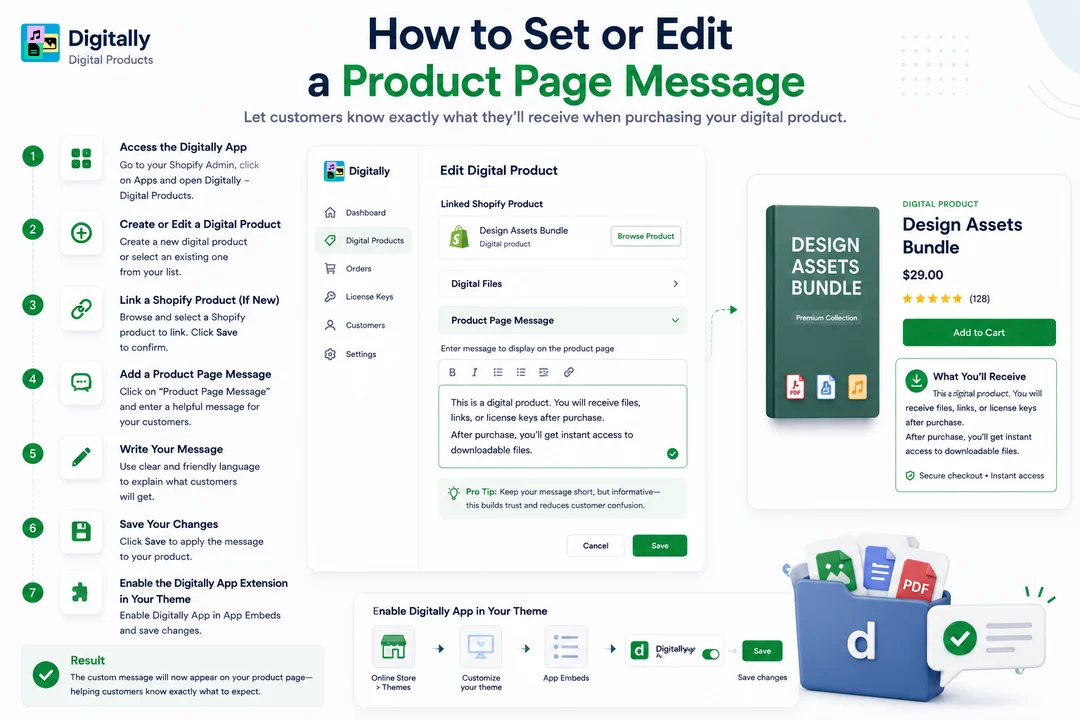
Let customers know exactly what they’ll receive when purchasing your digital product by adding a custom message to the product page.
🧭 Step 1: Access the Digitally App
- Go to your Shopify Admin, then click on Apps.
- Open Digitally – Digital Products.

🆕 Step 2: Create or Edit a Digital Product
- To create a new digital product, click Create New Digital Product.
- To edit an existing one, select the product from your list.

🔗 Step 3: Link a Shopify Product (If New)
- Click Browse Product to select a Shopify product.

- Choose the product you want to link.
- Click Save to confirm the association.
💡 Note: Make sure the product exists in Shopify first. Digitally only delivers digital files for linked Shopify products.

📝 Step 4: Add a Product Page Message
- click on the “Product Page Message” option in the product editor.
- In the message box, enter a short, helpful message to display on your product page.

✍️ Step 5: Write Your Message
Use clear and friendly language to explain what customers will get. Here are a few examples:
- ✅ This is a digital product. You will receive files, links, or license keys after purchase.
- 📚 Includes a free eBook with your purchase!
- 📧 Digital delivery: You will receive your product via email.
- ⚡ After purchase, you’ll get instant access to downloadable files.
🧠 Pro Tip: Keep your message short, but informative—this builds trust and reduces customer confusion.

💾 Step 6: Save Your Changes
Click Save to apply the message to your product.

Step 7: Enable the Digitally App Extension in Your Theme
- From your Shopify admin, go to Online Store > Themes.

- Click on Customize for your current theme.

In the theme editor, select App Embeds from the left-hand menu.

Locate Digitally App and toggle it to Enable.

Click Save to apply the changes.

✅ Result
The custom message will now appear directly on the product page of your Shopify store—helping customers know exactly what to expect when buying your digital product.




