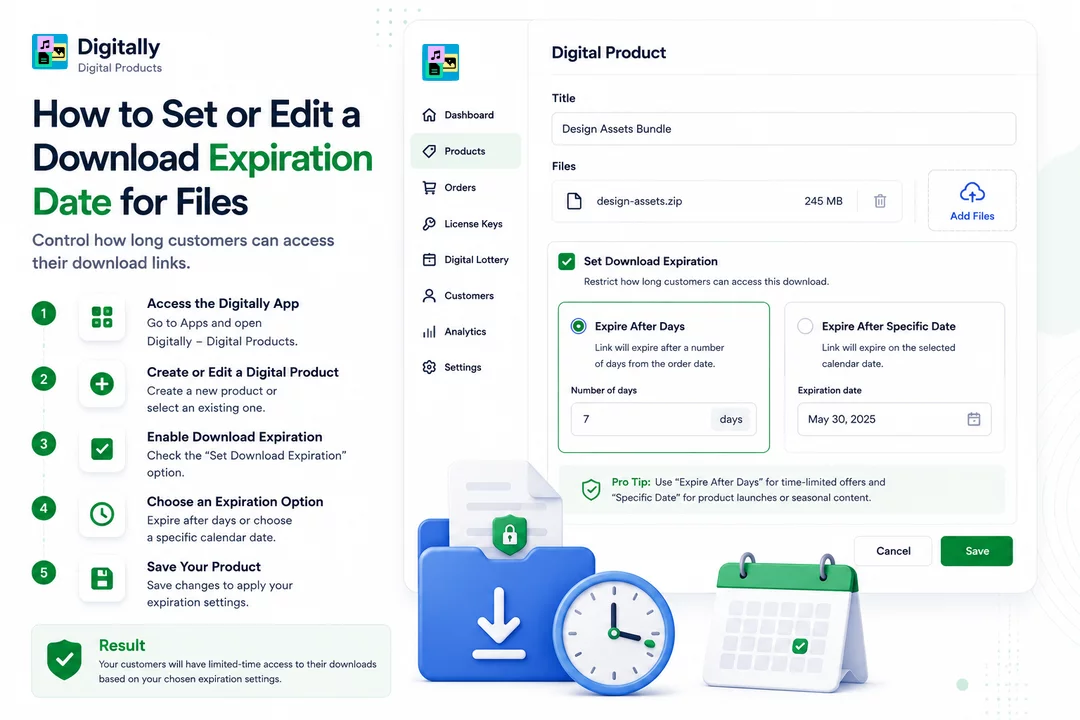
The Digitally app lets you control how long customers can access their download links. You can set an expiration period based on days or a specific calendar date.
🧭 Step 1: Access the Digitally App
- From your Shopify admin dashboard, go to Apps.
- Click on Digitally – Digital Products.
💡 Pro Tip: Pin Digitally to your sidebar for quick access.

🆕 Step 2: Create or Edit a Digital Product
- To add a new product, click Create New Digital Product.
- To edit an existing one, choose it from your product list.

🛑 Step 3: Enable the Download Expiration Setting
- Click the Set Download Expiration checkbox.

⏱️ Step 4: Choose an Expiration Option
Once the checkbox is selected, you'll see two expiration options:
✅ Option 1: Expire After Days
- Select this if you want the download link to expire a specific number of days after the order is placed.
- Enter the number of days (e.g., 3, 5, 7, etc.).

📅 Option 2: Expire After Specific Date
- Choose this if you want the download to expire on a fixed calendar date.
- Pick the expiration date starting from today.
🔐 Pro Tip: Use "Expire After Days" for time-limited offers and "Specific Date" for product launches or seasonal content.

💾 Step 5: Save Your Product
- After setting your preferred expiration option, click Save to apply the changes.
✅ Result
Your customers will now have limited-time access to their downloads based on your chosen expiration settings. This is ideal for license-based files, promotional content, or time-sensitive digital goods.



