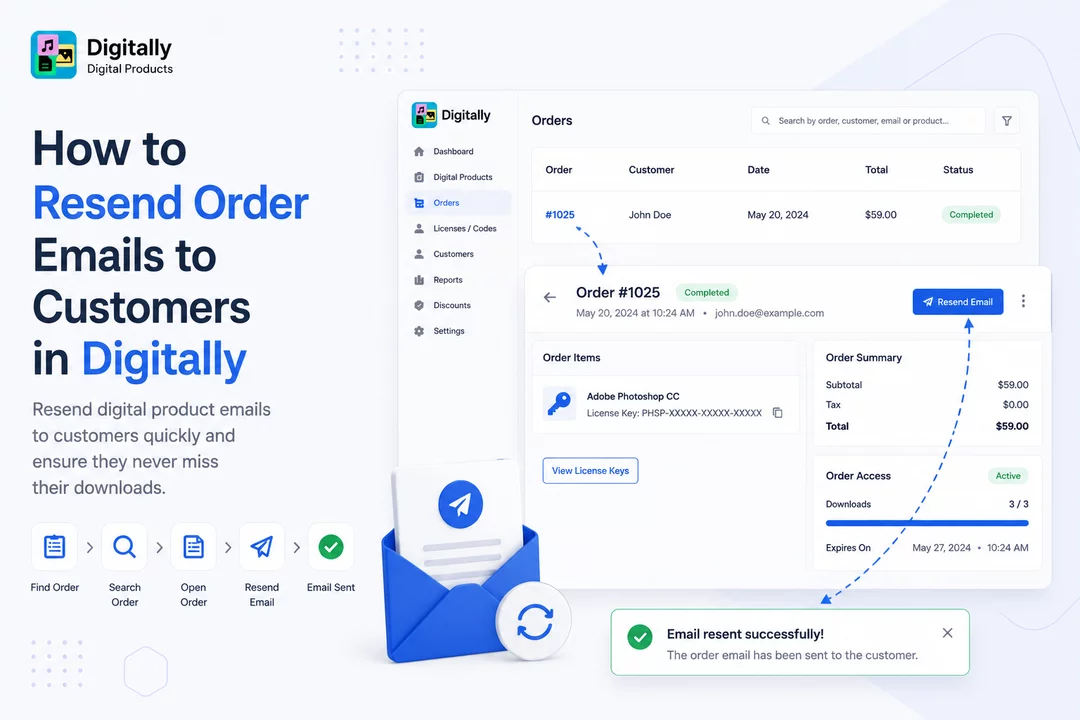
Need to resend a digital product email to a customer? Follow these quick steps to resend the order email in just a few clicks.
✅ Step 1: Open the Orders Page
Start by launching the Digitally – Digital Products app from your Shopify admin.
Go to the Orders page to view all orders containing digital products.

✅ Step 2: Identify the Digital Order
Only orders that include digital products will appear in the Digitally order list.
Find the order you want to resend the email for.

✅ Step 3: Search for the Order
Use the search bar at the top to quickly locate the order.
You can search by:
- Order number
- Customer’s first name
- Product name
Click on the order number to open its detail page.


✅ Step 4: Click the Resend Email Button
On the single order page, look at the top-right corner:
- If the email has not been sent before, you’ll see a Send Email button.
- If the email has already been sent, you’ll see a Resend Email button.
Click Resend Email to trigger the email again.

✅ Step 5: Confirmation Toast Message
After clicking the button, a confirmation toast message will appear on the screen confirming that the email has been successfully resent to the customer.

🎉 All Done!
Your customer will now receive the digital product email again. It's that fast and easy with the Digitally – Digital Products app!



