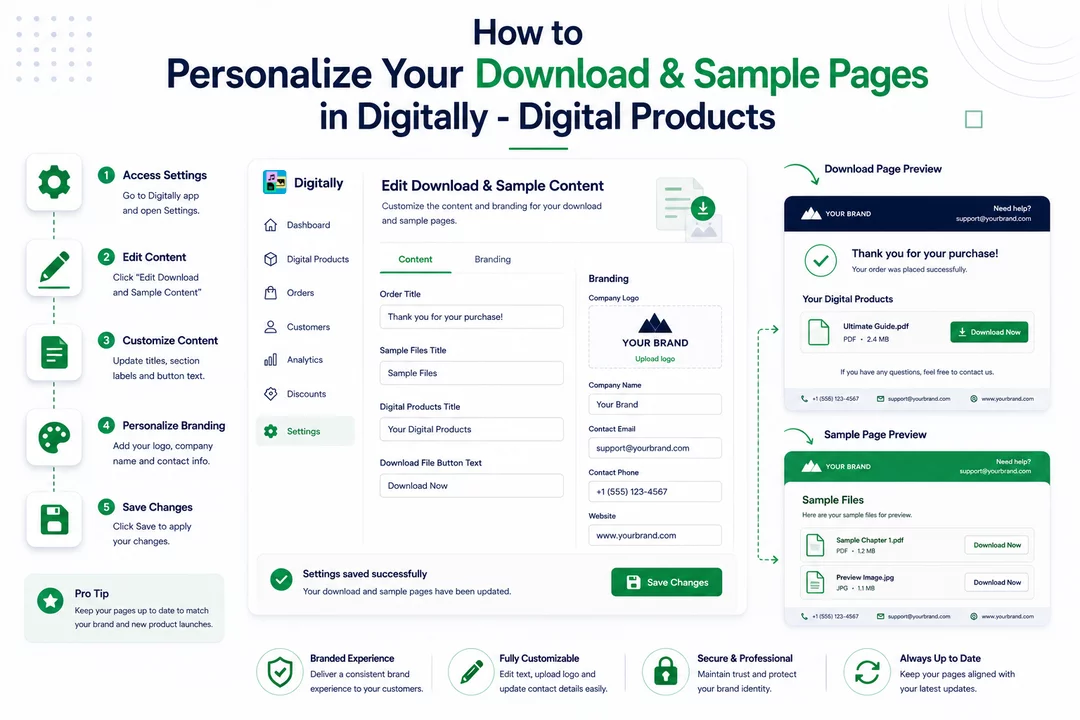
Enhance your customers' experience by customizing the download and sample pages they see after purchasing your digital products. Follow these simple steps to align the content with your brand's identity.
Step 1: 🛠️ Access the Settings
- In your Shopify admin, navigate to the Digitally – Digital Products app.
- Click on the Settings tab to begin customization.

Step 2: ✏️ Edit Download & Sample Content
- Within the settings, locate and click on Edit Download and Sample Content.
- This section allows you to modify the text displayed on the download and sample pages.

Step 3: 📝 Customize the Content
- In the Content tab, you'll find various fields to update:
- Order Title: Set a title for the order confirmation.
- Sample Files Title: Label the section where sample files are available.
- Digital Products Title: Title the section showcasing the purchased digital products.
- Download File Button Text: Customize the text on the download button (e.g., "Download Now").

Step 4: 🎨 Personalize Branding
- Switch to the Branding tab to adjust your company's branding elements:
- Upload Company Logo: Add your logo to reinforce brand identity.
- Company Name: Ensure your company name is correctly displayed.
- Contact Details: Provide contact information for customer support.


Step 5:💾 Save Your Changes
- After making your desired changes, click the Save button to apply them.
- Your updates will be reflected on the download and sample pages, providing a seamless and branded experience for your customers.

Pro Tip: Regularly review and update your download and sample pages to keep them aligned with any branding changes or new product offerings.



