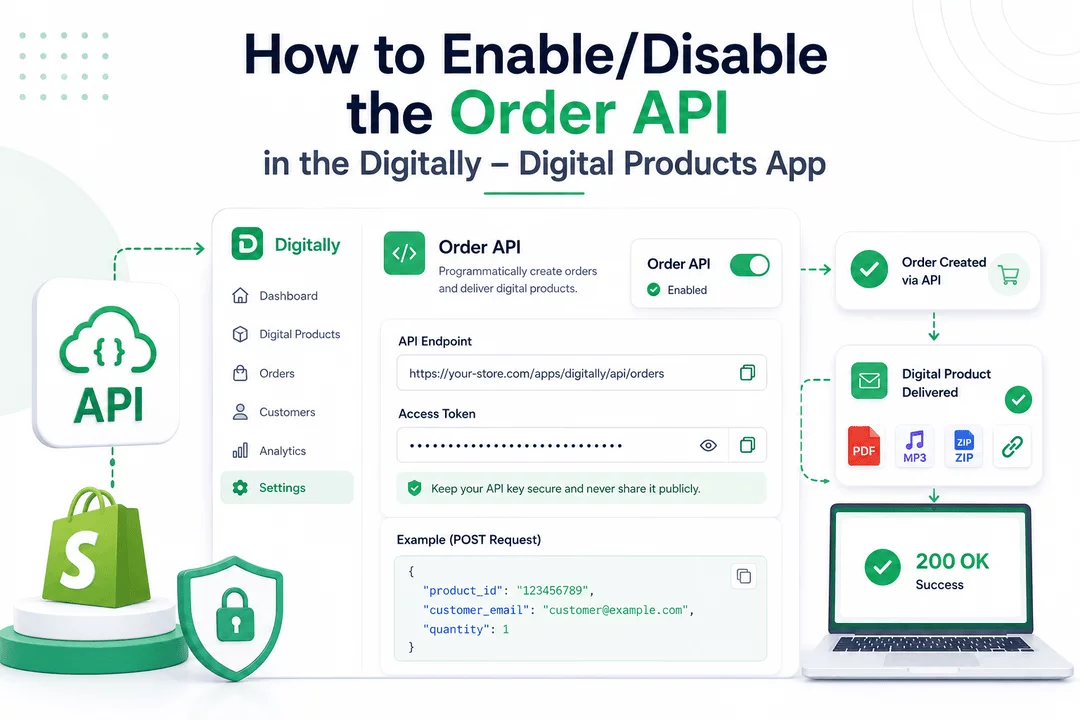
Want to programmatically create Shopify orders and trigger digital product delivery using an API? The Order API feature in the Digitally - Digital Products app allows just that. Here’s how to activate it and securely connect your store to external systems or forms.
⚙️ Step 1: Open the App Settings
From your Shopify Admin, launch the Digitally – Digital Products app.
Once inside the app, go to the Settings section via the left-hand sidebar or top navigation.

💡 Pro Tip: Bookmark this page for quick access whenever you need to manage API settings or security tokens.
🧩 Step 2: Access the Order API Section
Scroll down within the Settings page to find the Order API section.

💳 Step 3: Check Your Plan (Upgrade If Needed)
The Order API feature is only available on paid plans (Pro, Plus, or Unlimited).

If you're on the Free plan, upgrade to unlock access. Once upgraded, you'll see the option to Enable API.

💡 Pro Tip: This feature is perfect for advanced use cases like:
- External forms that create orders
- Lead magnets or freebies
- Bulk custom imports via API
🔓 Step 4: Enable API and Request Permission
- Toggle the Enable API checkbox.
- Click on Request Permission when prompted.

You’ll be redirected to Shopify’s authorization screen to approve the API’s ability to create orders in your store.

Once approved, you’ll return to the app where the API fields will now be visible.
🔑 Step 5: Access API Key and Endpoint
After enabling:
- API Endpoint and Access Token will appear under the Order API section.


- Keep your API key secure. Never share it publicly or expose it in unsecured environments.
Example Payload (POST Request)

You’ll receive a 200 OK response and order confirmation upon success. The order is created in Shopify, and the associated digital content is automatically delivered.

💡 Pro Tip: Use this feature with landing pages, email campaigns, or promo forms to auto-generate orders and send digital goods—no manual work needed.
✅ Step 6: You’re All Set!
Once you receive a successful API response on test order, your Digitally Order API is live and functional.
Use it to streamline your digital product delivery with precision and control.



