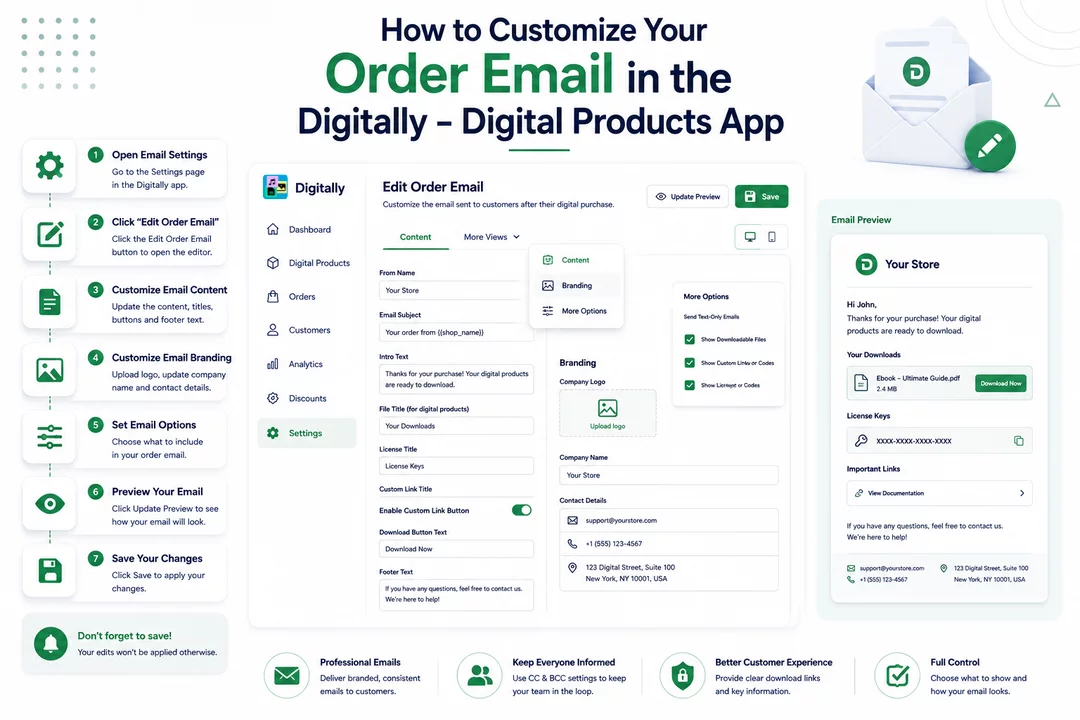
Follow these simple steps inside the Digitally - Digital Products app to tailor the order email sent to customers after their digital purchase.
✅ Step 1: Open Email Settings
Go to the Settings page in the Digitally app.

✅ Step 2: Click "Edit Order Email"
On the settings page, click the Edit Order Email button to open the email editor.

✅ Step 3: Customize Email Content
In the Content tab of the editor, you can update the main email message.
You can edit:
- From Name
- Email Subject
- Intro Text
- File Title (for digital products)
- License Title
- Custom Link Title
- Enable/Disable Custom Link Button
- Download Button Text
- Footer Text

✅ Step 4: Customize Email Branding
Click on the More Views dropdown and select Branding.

Here you can:
- Upload your Company Logo
- Update your Company Name
- Add or edit your Contact Details

✅ Step 5: Set Email Options
In the same More Views menu, go to More Options.

You can choose to:
- Send Text-Only Emails
- Show/Hide Downloadable Files
- Show/Hide Custom Links
- Show/Hide License Keys or Codes

✅ Step 6: Preview Your Email
Click Update Preview to see what your email will look like.
🔔 Note: “Update Preview” only shows how your email looks—it doesn't save any changes.

✅ Step 7: Save Your Changes
Once you're happy with everything, make sure to click Save to apply your changes.

💾 Don’t forget to save—your edits won’t be applied otherwise!



