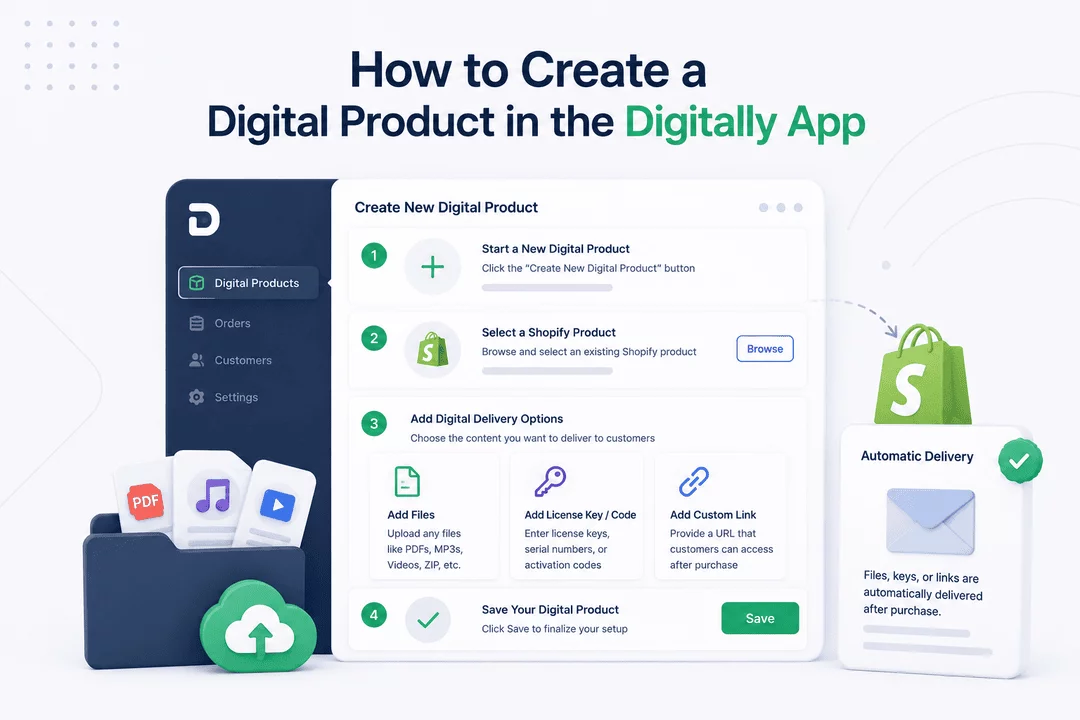
Follow these steps to create your first digital product:
🧭 Step 1: Start a New Digital Product
- Go to the Digital Products section in the Digitally app.
- Click the “Create New Digital Product” button.

🔗 Step 2: Select a Shopify Product
- On the product creation page, click the “Browse” button to select an existing Shopify product.
💡 Note: You must first create the product in Shopify (with a title, price, etc.) before linking it here in Digitally. This is how customers will purchase and receive your digital content.

- Select the product and save it

📁 Step 3: Add Digital Delivery Options
Once your product is selected, you’ll see three content delivery options:
1️⃣ Add Files
Upload files such as:
- 📄 PDFs
- 🎵 MP3s
- 📹 Videos
- 🗂 ZIP or other downloadable content
2️⃣ Add License Key / Code
Enter license keys, serial numbers, or activation codes that will be delivered to the customer upon purchase.
3️⃣ Add Custom Link
Provide a URL (e.g., Google Drive link, membership portal, or landing page) that customers can access after purchase.
🔐 Pro Tip: You can combine all three options if needed (e.g., file + license key + link).

💾 Step 4: Save Your Digital Product
- Click the Save button at the bottom of the page to finalize your setup.

📬 After saving, when a customer buys the product from your store, the Digitally app will automatically deliver the selected files, keys, or links based on your configuration.



