How to Add or Edit a Sample File with Digitally – Digital Products app.
The Digitally app allows you to sell digital products like eBooks, software, music, and more and lets you offer downloadable sample files so customers can preview your product before purchasing.
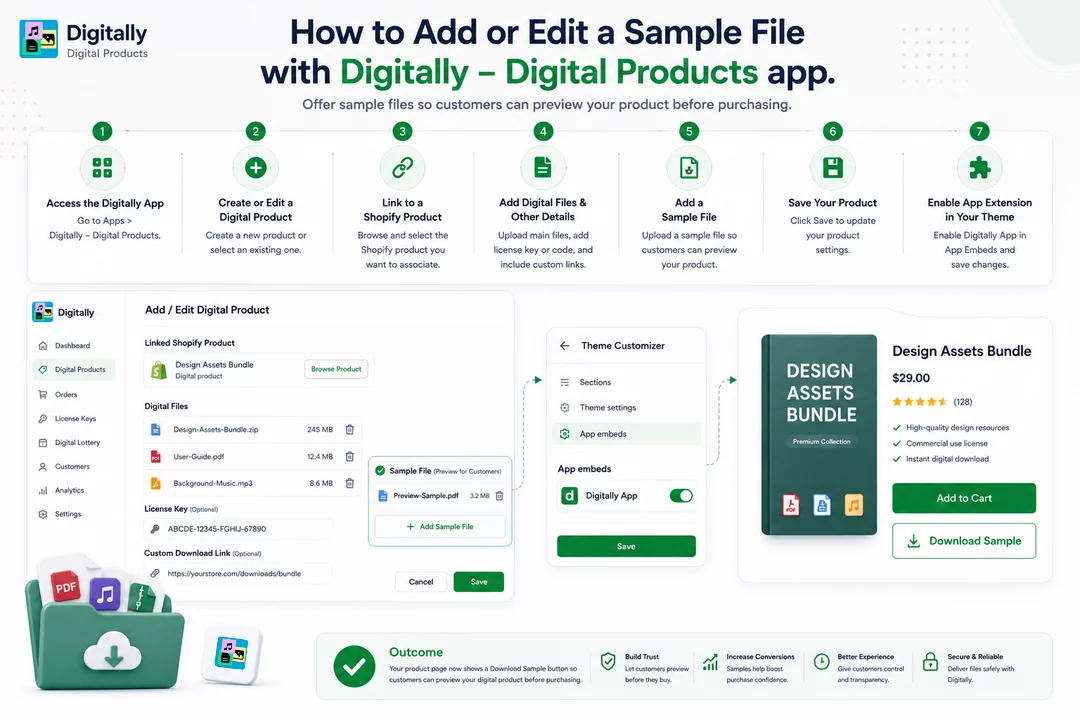
The Digitally app allows you to sell digital products like eBooks, software, music, and more and lets you offer downloadable sample files so customers can preview your product before purchasing.
🧭 Step 1: Access the Digitally App
- Go to your Shopify admin dashboard.
- Click on Apps, then select Digitally – Digital Products.
💡 Pro Tip: Pin the app to your sidebar for faster access next time.

Step 2: Create or Edit a Digital Product
- To create a new digital product, click on Create New Digital Product.
- To edit an existing product, select it from your product list.

Step 3: Link to a Shopify Product
- Click on Browse Product.

- Select the Shopify product you want to associate with your digital files.
- Click Save to confirm the association.

Step 4: Add Digital Files and Other Details
- In the product setup:
- Upload your main digital files (e.g., PDF, MP3, ZIP).
- Add a license key or code if applicable.
- Include a custom download link if needed.
- These files will be delivered to customers upon purchase.

Step 5: Add a Sample File
- Click on Add Sample File.
- Upload the sample file you wish to offer for free download.
- This allows customers to preview your product before buying.

Step 6: Save Your Product
- After adding all necessary files and information, click Save to update your product settings.

Step 7: Enable the Digitally App Extension in Your Theme
- From your Shopify admin, go to Online Store > Themes.

- Click on Customize for your current theme.

In the theme editor, select App Embeds from the left-hand menu.

Locate Digitally App and toggle it to Enable.

Click Save to apply the changes.

✅ Outcome
With these steps completed, your product page will display a Download Sample button. Customers can download the sample file directly from the product page, allowing them to preview your digital product before making a purchase

If you need further assistanc



