Need to update your content or attach new files to an existing product? The Digitally app makes it quick and simple to manage your digital file delivery.
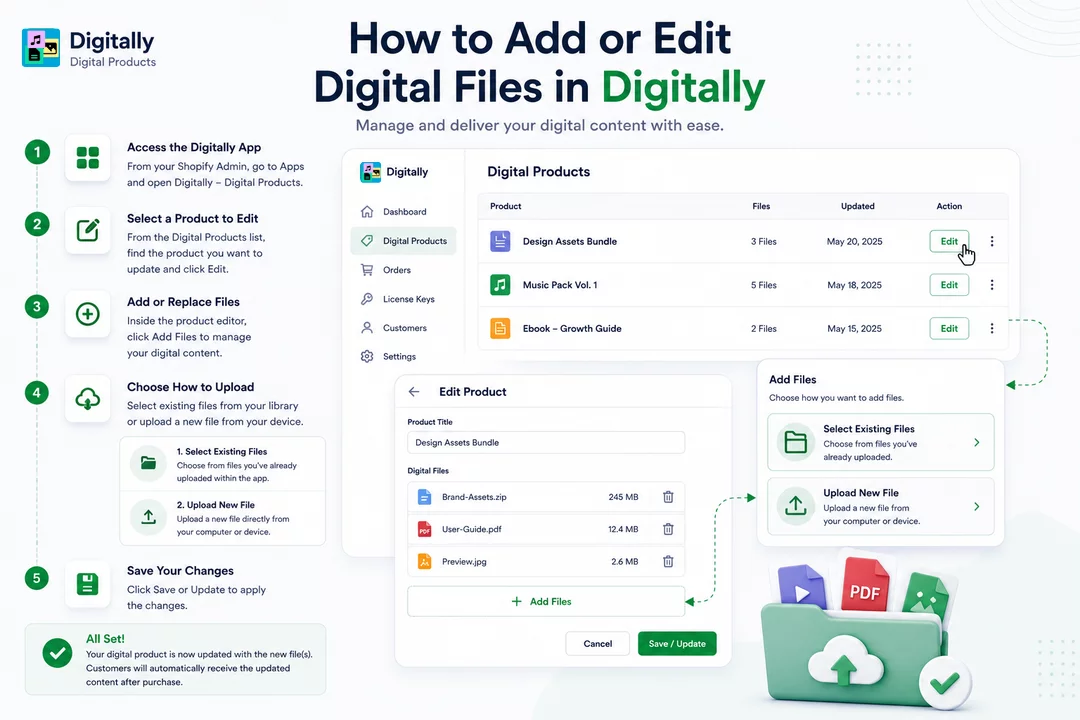
🧭 Step 1: Access the Digitally App
- From your Shopify Admin, go to Apps.
- Click on Digitally – Digital Products to open the app.

🛠️ Step 2: Select a Product to Edit
- From the Digital Products list, find the product you want to update.
- Click the Edit button next to it.

➕ Step 3: Add or Replace Files
Inside the product editor, click on Add Files to manage your digital content.

🔄 Step 4: Choose How to Upload
You have two options:
📂 1. Select Existing Files
Choose from files you've already uploaded within the app.

⬆️ 2. Upload New File
Upload a new file directly from your computer or device.

💾 Step 5: Save Your Changes
Once you’ve added or replaced the files, click Save or Update to apply the changes.

After selecting or uploading the files, click “Save” or “Update” to apply the changes.
our digital product is now updated with the new file(s). When a customer purchases the item, they’ll automatically receive the updated digital content.



