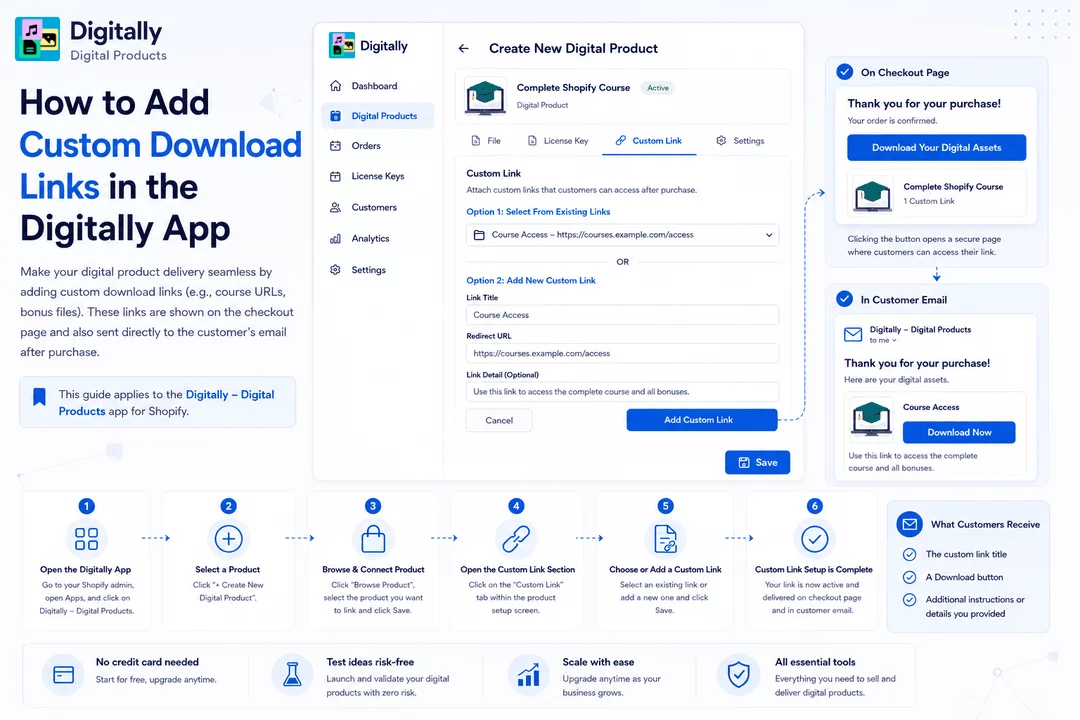
Make your digital product delivery seamless by adding custom download links (e.g., course URLs, bonus files). These links are shown on the checkout page and also sent directly to the customer's email after purchase.
📌 This guide applies to the Digitally – Digital Products app for Shopify.
🔹 Step 1: Open the Digitally App
- 📲 Go to your Shopify admin panel, open Apps, and click on Digitally – Digital Products.

🔹 Step 2: Select a Product
- Click ➕ Create New Digital Product.

🔹 Step 3: Browse & Connect Product
- 🔍 Click “Browse Product” to view your Shopify products.

- 🛍️ Select the product you want to link with this digital item.
- 💾 Click Save.

🔹 Step 4: Open the Custom Link Section
🔗 Click on the Custom Link tab within the product setup screen.

🔹 Step 5: Choose or Add a Custom Link
You now have two options:
Option 1: Select From Existing Links
- 📂 Choose any previously created custom link.
Option 2: Add a New Custom Link
🆕 Click “Add New Custom Link” and fill out:
- 🏷️ Link Title – e.g., “Course Access”
- 🌐 Redirect URL – Your external download or course link
- ✍️ Link Detail – Instructions or description (optional)
💾 Click Add custom link to store the new link.

- 💾 Click Save to attach it to the product.

🔹 Step 6: Custom Link Setup is Complete
✅ Your custom download link is now active and will:
- Be visible on the checkout confirmation page

🖱️ Clicking Download Your Digital Assets on the checkout page opens a new page where customers can access their files.

Be included in the customer's email with a Download button

✉️ What Customers Receive
📧 The customer receives an email that includes:
- The custom link title
- A Download button
- Any additional instructions or details you provided



