From Upload to Delivery: Selling Digital Products with Digitally
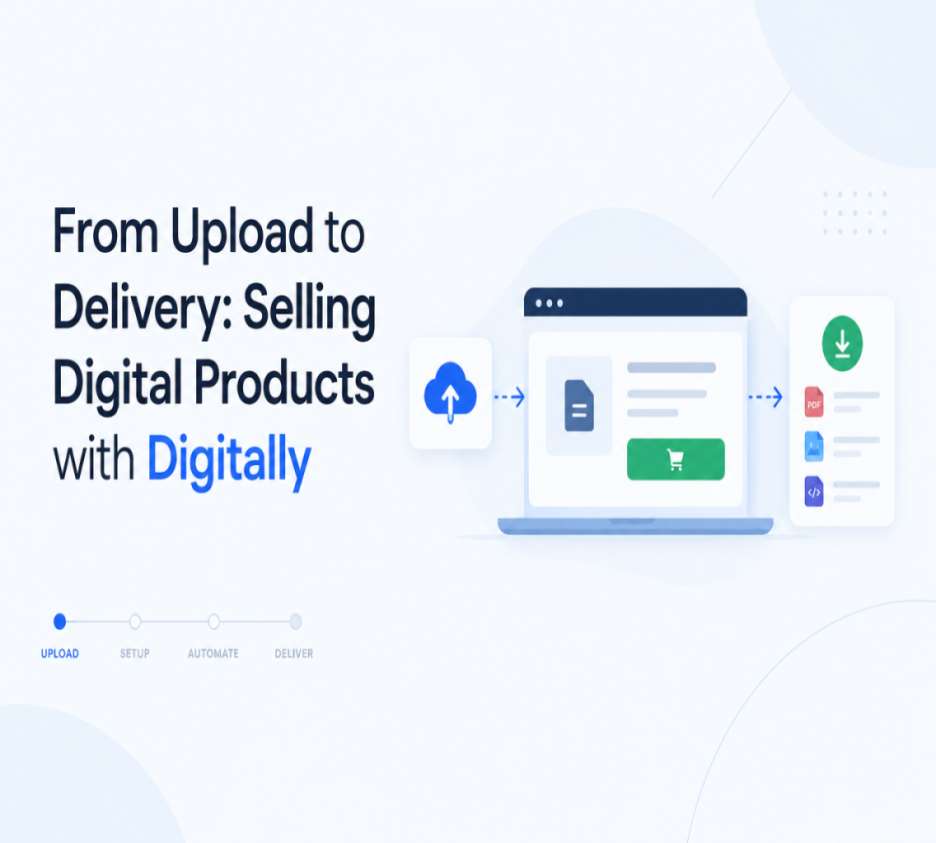
Selling digital products on Shopify offers an excellent opportunity to build an online business without managing physical inventory, packaging, or shipping. Whether you sell eBooks, templates, software, music, digital artwork, online resources, or license keys, digital products allow you to reach customers worldwide and deliver products electronically.
However, creating a digital product is only one part of the process. You also need a reliable way to upload files, connect them to Shopify products, manage customer access, and ensure buyers receive their purchases without unnecessary delays.
This is where digital product delivery automation becomes important.
With Digitally – Digital Products, Shopify merchants can manage the journey from uploading digital content to delivering it to customers. Instead of manually sending files after every purchase, merchants can organize their digital products and automate important delivery tasks.
In this guide, we will explore how the complete process works, from preparing your digital files to providing customers with a smooth download experience.
Why Digital Product Delivery Matters
When customers purchase a digital product, they generally expect to receive it immediately. Unlike physical orders, digital purchases do not require shipping labels, packaging, or delivery services.
Customers expect a simple process:
- Browse a digital product.
- Complete the purchase.
- Receive access to the purchased content.
- Download or access the product.
If customers have to wait for an email containing their files or contact the store owner to request access, the buying experience can become frustrating.
Automated delivery helps eliminate these unnecessary steps. It allows merchants to focus on creating products, improving their stores, and serving customers instead of repeatedly handling manual delivery tasks.
Step 1: Prepare Your Digital Products
Before uploading anything to your Shopify store, organize the digital products you plan to sell.
Digital products come in different formats, depending on what your business offers.
Some popular examples include:
- eBooks and PDFs: Guides, educational materials, workbooks, and digital publications.
- Templates: Canva templates, spreadsheets, presentations, and website designs.
- Software: Applications, plugins, tools, and downloadable programs.
- Digital artwork: Illustrations, graphics, photographs, and design resources.
- Audio files: Music, sound effects, podcasts, and audio resources.
- License keys: Software activation codes, product keys, and access codes.
Make sure your files are properly named, organized, and ready for customers.
For example, if you sell an eBook, you might prepare a PDF file along with a separate sample chapter. If you sell software, you might prepare an installation file and the corresponding license keys.
Preparing your content in advance makes the product setup process easier.
Step 2: Upload Digital Files with Digitally
Once your digital products are ready, the next step is uploading them to your digital delivery system.
Digitally allows Shopify merchants to manage digital files through its Library and product setup features.
You can upload files and organize the content you want to deliver to customers.
For example, a merchant selling a digital photography course might upload:
- Course introduction PDF
- Photography lesson videos
- Editing presets
- Bonus resource files
After uploading the files, you can use them when configuring the relevant Shopify products.
This approach helps keep digital content organized and makes it easier to manage multiple products from one place.
Step 3: Connect Digital Files to Shopify Products
Uploading files is not enough. You also need to connect those files to the correct Shopify products.
For example, imagine your Shopify store sells three products:
- Beginner Photography Guide
- Social Media Template Bundle
- Website Design Toolkit
Each product should deliver its corresponding digital content.
Using Digitally, you can browse your existing Shopify products and configure their digital content.
Select the product you want to configure, then add the relevant files, license keys, or custom links.
This helps ensure that customers receive the correct digital content after purchasing a particular product.
It is especially useful for merchants managing several digital products with different files and delivery requirements.
Step 4: Configure Automatic Digital Delivery
One of the most important parts of selling digital products is making sure customers receive their purchases automatically.
Manual delivery can become difficult as your business grows. Every new order may require you to locate the correct file, prepare an email, and send the download link.
Automated delivery reduces this repetitive work.
With Digitally, merchants can configure digital products so customers can receive their purchased content through the delivery process after completing an order.
Depending on the product configuration, merchants can provide:
- Downloadable files
- Software license keys and codes
- Custom download links
- Multiple digital resources
This makes the buying experience more convenient because customers do not need to wait for the merchant to manually send their purchases.
Step 5: Customize the Customer Download Experience
A good digital product experience should be simple and easy to understand.
Customers should know where to find their purchased content and how to access it.
Digitally provides several options that help merchants configure the delivery experience.
Add a Sample File
If you sell digital guides, templates, or educational resources, you may want to provide a sample before customers purchase.
A sample file allows potential buyers to preview part of your digital product and understand what they are purchasing.
Set Download Expiration
Some merchants may want to limit how long customers can access their digital downloads.
Digitally provides download expiration settings that can be configured using expiration days or a specific expiration date.
This can be useful for temporary resources, limited-access materials, and certain promotional products.
Add a Product Page Message
You can also configure a product page message to provide additional information about your digital product.
For example, you might explain that the product is delivered digitally and does not require physical shipping.
Clear instructions help customers understand what to expect before making a purchase.
Step 6: Manage License Keys, Codes, and Custom Links
Not every digital product is a downloadable file.
Some businesses sell software licenses, activation codes, membership access, or other digital resources that customers receive through unique codes or links.
Digitally supports different delivery methods to accommodate these business models.
License Keys and Codes
If you sell software or digital subscriptions, you can add license keys or codes to your products.
These codes can be managed through the Digitally Library, including importing multiple keys using a CSV file.
This is useful when managing large collections of activation codes or preparing inventory for future orders.
Custom Download Links
Some digital products are hosted externally or require customers to access a specific webpage.
Digitally's Custom Links feature allows merchants to create links with a title, redirect URL, and optional link details.
For example, you might provide:
- Access to an online course
- A private resource page
- A hosted digital product
- A membership access link
This gives merchants more flexibility when delivering products that are not stored directly as downloadable files.
Step 7: Manage Orders and Customer Downloads
As your store receives more orders, managing customer access becomes increasingly important.
Customers may occasionally lose their download links, experience access problems, or need assistance locating their purchases.
Digitally provides order management tools to help merchants handle these situations.
Some useful capabilities include:
- Customer Card: Review relevant customer information associated with an order.
- Reset Access: Restore customer access when necessary.
- Send or Resend Order Emails: Send delivery information again when customers need it.
- Edit Single Order: Manage individual order details.
- Order Search: Find orders using customer, order, or product information.
These tools help merchants resolve common customer support requests without rebuilding the delivery process for every order.
Step 8: Monitor Digital Product Performance
Understanding how customers interact with your digital products can help you make better business decisions.
For example, you may want to know which products receive the most downloads or how download activity changes over time.
Digitally includes analytics features that help merchants review digital product activity.
Downloads Over Time
The Downloads Over Time chart provides an overview of download activity across different periods.
Merchants can use this information to understand changes in customer engagement.
Top Downloaded Products
The Top Downloaded Products section helps identify which digital products receive the most downloads.
This information can help you recognize popular products, evaluate customer interest, and plan future digital product offerings.
Common Mistakes to Avoid When Selling Digital Products
Even with automated delivery, merchants should pay attention to how their digital products are configured.
Here are some common mistakes to avoid.
1. Uploading the Wrong Files
Always double-check that each digital file is connected to the correct Shopify product. Delivering an incorrect file can create confusion and unnecessary support requests.
2. Forgetting to Test the Buying Experience
Before launching a product, review its configuration and test the customer journey to make sure the expected content is delivered.
3. Providing Unclear Download Instructions
Customers should understand how to access their purchases. Use clear product descriptions, messages, and delivery instructions.
4. Ignoring License Key Inventory
If you sell software keys or activation codes, monitor your available inventory. Running out of unused codes can interrupt the delivery process.
5. Not Reviewing Customer Access Issues
Occasionally review customer support requests and use available order management tools to resolve access problems.
Avoiding these mistakes can help create a more reliable digital shopping experience.
Why Choose Digitally for Shopify Digital Product Delivery?
Selling digital products involves more than simply uploading files. Merchants need a system to organize content, connect products, manage delivery, and provide customers with access to their purchases.
Digitally brings several of these tasks together in one Shopify app.
With Digitally, merchants can:
- Upload and manage digital files.
- Attach digital content to Shopify products.
- Automate digital product delivery.
- Deliver software license keys and codes.
- Create custom download links.
- Configure download expiration.
- Provide sample files.
- Manage customer orders and access.
- Review download analytics.
Whether you are starting with a single downloadable product or managing a growing digital product catalog, having an organized delivery process can make daily store management easier.
Final Thoughts
The journey from uploading a digital file to delivering it to a customer should not be complicated.
A successful digital product business needs more than valuable content. It also needs an organized product setup, reliable delivery, convenient customer access, and effective order management.
By using a digital product delivery solution like Digitally, Shopify merchants can simplify these important tasks and spend more time developing their products and growing their businesses.
From eBooks and templates to software license keys and custom links, Digitally helps bring different digital delivery needs together in one place.
If you are planning to sell digital products on Shopify, start by organizing your content, connecting it to the right products, and creating a delivery experience that customers can easily understand.
Frequently Asked Questions
You can sell digital products by creating a Shopify product, preparing your downloadable content, and using a digital delivery app such as Digitally to connect files or other digital resources to your products.
Digital products can be delivered automatically through a digital delivery system. Depending on the setup, customers can receive download access, license keys, activation codes, or custom links after purchasing.
Yes. You can configure a Shopify product with multiple digital files, allowing customers to access several resources associated with a single purchase.
Yes. Shopify merchants can sell software license keys and activation codes using a digital delivery app that supports code management and delivery. Digitally includes license key and code management features.
Yes. Digitally provides download expiration settings, allowing merchants to configure access based on a specified number of days or an expiration date.
Yes. Merchants can use Digitally's order management features to reset customer access and send or resend order emails when customers need help accessing their purchases.
Digital Products
Digital Downloads
Shopify Automation
Digital Product Delivery
license key delivery
sell digital product
Digitally

Digitally ‑ Digital Products
Sell files, e-books, license keys, promo codes & digital links
 Install Now