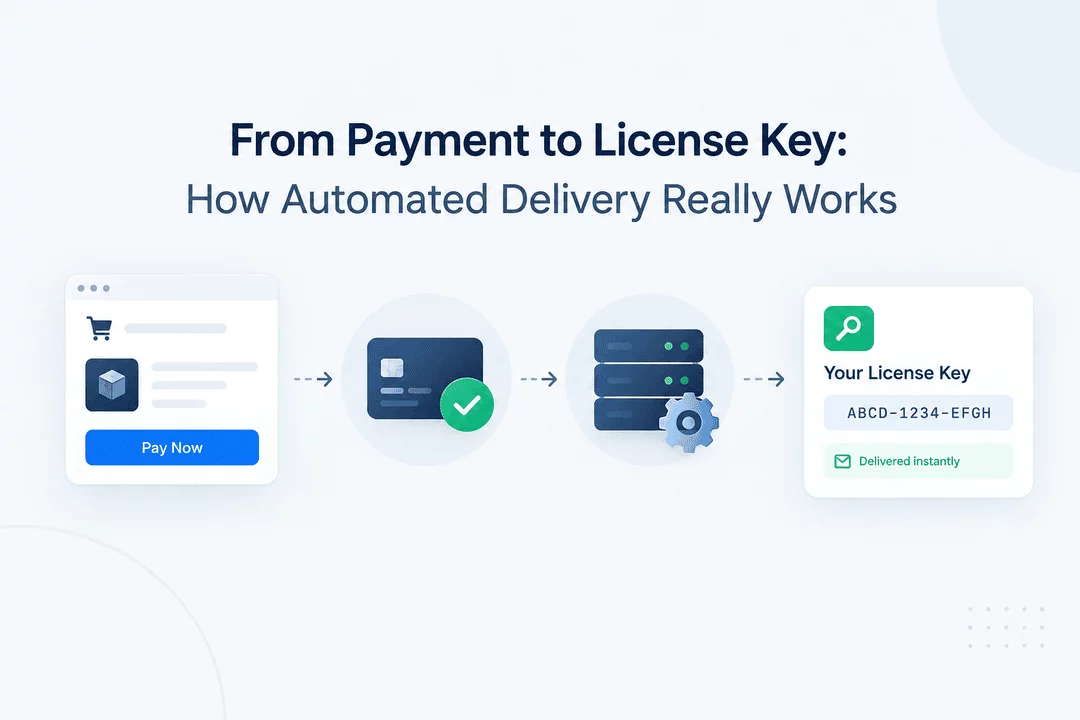
From Payment to License Key: How Automated Delivery Really Works
Selling software, memberships, subscriptions, plugins, courses, and other digital products is only part of running a digital business. The next challenge is making sure customers receive the correct license key quickly, securely, and without requiring manual work.
For Shopify merchants selling products that depend on license keys, the journey from payment to license key delivery can be automated from beginning to end.
Instead of manually checking orders, finding an available key, copying it into an email, and sending it to each customer, an automated license delivery system can handle these steps immediately after a successful purchase.
In this guide, we'll explain how automated license key delivery works, what happens after a customer pays, and how Shopify merchants can use automation to create a smoother digital delivery process.
What Is Automated License Key Delivery?
Automated license key delivery is a system that automatically provides a unique key, activation code, subscription code, or similar digital credential after a customer completes a purchase.
For example, imagine a customer purchases a software license from your Shopify store.
The automated process can look like this:
Customer places order → Payment is completed → Order is confirmed → License key is assigned → Key is delivered → Customer activates the product
The entire process can happen within seconds without the merchant manually sending anything.
This is particularly useful for businesses selling:
- Software licenses
- Plugin licenses
- Subscription keys
- Membership keys
- API keys
- Activation codes
- Game keys
- Course access codes
- VPN or service keys
- Digital memberships
- Other code-based digital products
Why Manual License Delivery Becomes a Problem
When a store has only a few orders, manually delivering license keys may seem manageable.
But as sales increase, manual fulfillment can quickly become time-consuming.
A typical manual workflow might require you to:
- Check for a new order.
- Confirm payment.
- Find an unused license key.
- Copy the key.
- Match it with the correct product.
- Email the customer.
- Mark the key as used.
- Record the transaction.
Doing this repeatedly creates several opportunities for human error.
For example, a merchant could accidentally send the wrong key, send the same key twice, forget to send a key, or delay delivery because an order wasn't noticed immediately.
Automation reduces these repetitive tasks.
How the Process Works From Payment to License Key
Let's break the automated workflow into individual steps.
Step 1: The Customer Purchases a Product
The process begins when a customer visits your Shopify store and purchases a digital product.
The product might represent:
- A one-time software license
- A monthly subscription
- A yearly membership
- A plugin activation
- An API subscription
- A game or digital service
The customer completes checkout just like they would for another Shopify product.
Step 2: Shopify Processes the Order
After checkout, Shopify processes the transaction according to the payment method and store configuration.
Once the order reaches the appropriate fulfillment stage, the digital delivery system can begin processing the purchase.
At this point, the system needs to determine which digital asset should be delivered.
For a license-based product, that asset is typically a unique license key or activation code.
Step 3: The System Identifies the Correct Product
A license delivery system needs to know which keys belong to which products.
For example:
Product A:
Premium Photo Editor
License keys: PHOTO-XXXX-XXXX
Product B:
SEO Plugin Pro
License keys: SEO-XXXX-XXXX
Product C:
Video Toolkit
License keys: VIDEO-XXXX-XXXX
When an order comes in, the system identifies the purchased product and selects a compatible key.
This product-to-key relationship is essential because customers should receive the correct credentials for the product they purchased.
Step 4: An Available License Key Is Assigned
The system then checks the available key pool.
Suppose your store has 500 unused keys.
After a customer purchases one license, the system can automatically assign one available key to that order.
For example:
Order: #1058
Product: Premium Software
Assigned key: PREMIUM-7X92-K4LP
The key is now associated with that purchase.
This eliminates the need for the merchant to manually search through spreadsheets or databases.
Step 5: The License Key Is Delivered
After assignment, the key can be delivered to the customer through the configured digital delivery experience.
Depending on the setup, the customer might receive the key through:
- A download page
- A thank-you page
- Customer account access
- A custom delivery page
A well-designed delivery experience should make the key easy to find and use.
For example:
Your License Key
PREMIUM-7X92-K4LP
Activation Instructions:
Download the application and enter the license key during activation.
This gives the customer immediate access to the information they need.
What Happens When a Customer Buys Multiple Units?
Automated license delivery becomes even more useful when customers can purchase multiple quantities.
Imagine a customer purchases 3 units of a software product.
Instead of manually preparing three keys, the system can assign multiple available keys to the same order.
For example:
Quantity: 3
License Keys:
SOFT-8H72-K91PSOFT-4K31-M82XSOFT-9Q54-L27A
This approach can be useful for teams, organizations, resellers, and customers purchasing multiple seats.
Some license delivery systems also support configurations where multiple keys are assigned per purchased unit.
What If You Run Out of License Keys?
License inventory is an important part of automated delivery.
If your available key pool becomes empty, the system needs to identify that there are no more keys available.
This can help prevent merchants from selling products that they cannot immediately fulfill.
For example:
Available keys: 2
Customer purchases: 3 licenses
Without appropriate inventory controls, the merchant could end up with an order requiring more keys than are available.
A license management system can help merchants monitor key availability and replenish their inventory before fulfillment becomes a problem.
Bulk Importing License Keys
Manually adding hundreds or thousands of keys individually is inefficient.
For larger license inventories, merchants can use bulk imports.
For example, a CSV file could contain:
License Key | Product |
ABCD-1234-EFGH | Software Pro |
IJKL-5678-MNOP | Software Pro |
QRST-9012-UVWX | Software Pro |
The keys can then be imported into the appropriate product's license inventory.
This makes it easier to migrate an existing license database or upload a large batch of newly generated keys.
Automated Delivery Helps Reduce Human Error
One of the biggest advantages of automation is consistency.
A manual process depends on someone remembering every step.
An automated process can follow the same workflow for every eligible order.
Instead of:
Order → Human checks order → Human finds key → Human copies key → Human sends email
You can have:
Order → System verifies order → System assigns key → System delivers key
This can reduce repetitive administrative work and help create a more consistent customer experience.
License Keys and Security
License keys can represent valuable digital access, so merchants should consider how those keys are delivered and protected.
Useful security features may include:
- Secure delivery links
- Download limits
- Expiring links
- License inventory tracking
- Order-based access
- Customer authentication
- Fraud protection
- Controlled access to digital files
- License validation systems
Security requirements vary depending on the product.
For example, a simple activation code may require a different workflow from a software license connected to an external validation API.
What About License Key Validation?
Delivery is only one part of the license lifecycle.
After receiving a key, the customer may enter it into your software or service.
Your application can then validate whether the key is:
- Valid
- Active
- Expired
- Already used
- Associated with a specific product
- Associated with a specific customer or account
This creates a broader workflow:
Purchase → Delivery → Activation → Validation → Renewal or Expiration
For subscription products, the process can continue beyond the initial purchase.
Automated Delivery for Subscription Products
License automation can also work with recurring products.
For example, imagine a customer purchases a yearly software subscription.
The workflow could be:
Subscription purchase → License assigned → Key delivered → Customer activates software → Subscription remains active
When the subscription period ends, your license management system can determine whether the key should remain active, expire, or require renewal.
This makes automated delivery useful for SaaS products, memberships, software subscriptions, and other recurring digital services.
Why Shopify Merchants Use Automated Digital Delivery
For Shopify merchants, automated delivery can connect the storefront experience with digital fulfillment.
Instead of managing orders in one system and license keys in another manual workflow, a digital delivery app can help coordinate the process.
With Digitally – Digital Products, Shopify merchants can deliver digital files, license keys, activation codes, and other digital content after purchase.
Merchants can also manage license key inventory, import keys in bulk, configure delivery emails, and create automated digital fulfillment workflows.
A Simple Example
Consider a Shopify store selling a WordPress plugin.
The store has 1,000 license keys available.
A customer purchases the plugin.
The automated workflow could be:
1. Customer buys the plugin
↓
2. Shopify confirms the order
↓
3. Digitally identifies the purchased product
↓
4. An available license key is selected
↓
5. The key is assigned to the order
↓
6. The customer receives the key
↓
7. Customer activates the plugin
The merchant doesn't need to manually search for a key or send a separate email.
This is the basic idea behind automated license key delivery.
Manual vs. Automated License Delivery
Manual Delivery | Automated Delivery |
Merchant checks orders manually | System processes eligible orders |
Keys copied manually | Keys assigned automatically |
Higher repetitive workload | Less repetitive work |
Greater risk of copying errors | Consistent fulfillment workflow |
Slower at higher order volumes | Designed to scale with order volume |
Requires ongoing attention | Can operate automatically |
Automation doesn't eliminate the need for managing your products and license inventory, but it can remove many repetitive fulfillment steps.
Best Practices for Automated License Delivery
1. Keep Your License Inventory Organized
Separate keys by product, plan, subscription type, or other relevant categories.
2. Monitor Available Keys
Don't wait until your inventory reaches zero before preparing a new batch.
3. Use Clear Delivery Emails
Make the license key easy to find and include instructions explaining how to activate it.
4. Protect Your Digital Products
Use appropriate download restrictions, expiring links, and access controls where necessary.
5. Test the Customer Experience
Place test orders and verify that the correct product, license key, and instructions are delivered.
6. Plan for Multiple Quantities
If customers can purchase multiple units, make sure your delivery workflow can provide the correct number of keys.
7. Consider License Validation
For software and subscription products, connect delivery with a validation system when your business model requires it.
From Transaction to Fulfillment
Automated license delivery is essentially about turning a payment event into a reliable digital fulfillment process.
The customer doesn't just want to know that their payment succeeded. They want to receive the product they purchased and understand how to use it.
For license-based digital products, that often means receiving a valid key immediately after purchase.
The complete journey can be summarized as:
Payment → Order → Product Identification → License Assignment → Delivery → Activation → Validation
Once this workflow is automated, merchants can spend less time handling individual fulfillment tasks and more time focusing on their products, customers, and business.
Final Thoughts
License key delivery doesn't have to be a manual process.
Whether you're selling software, plugins, memberships, subscriptions, games, or API services, automated fulfillment can connect the customer's purchase with the digital credentials they need.
The key is building a workflow that reliably identifies the product, assigns the correct license, delivers it securely, and keeps your license inventory organized.
For Shopify merchants, Digitally – Digital Products provides tools for automating digital delivery, including license keys, activation codes, files, custom links, and other digital products.
If you're currently copying and sending license keys manually, automation can turn that repetitive process into a streamlined part of your Shopify store.
Frequently Asked Questions
Automated license key delivery is a process that automatically assigns and sends a license key, activation code, or subscription key to a customer after a successful purchase. It eliminates the need to manually find and email keys for every order.
After a customer completes a purchase, the system identifies the purchased product, selects an available license key, assigns it to the order, and delivers it through email, a download page, or another configured delivery method.
Yes. Shopify merchants can use digital product delivery apps to automatically assign and deliver license keys after eligible purchases. Digitally – Digital Products supports automated delivery of license keys, activation codes, and other digital content.
Yes. Businesses with large license inventories can typically import keys in bulk using a CSV file. This makes it easier to manage hundreds or thousands of keys without entering them individually.
Automation can reduce common manual mistakes such as sending the wrong key, sending the same key twice, forgetting to send a key, or delaying fulfillment. Digitally helps Shopify merchants organize license keys and automate their delivery workflow.
Yes. Automated license delivery can be used for subscription keys, membership keys, software licenses, plugin licenses, and other recurring digital products. The workflow can connect the initial purchase with key delivery and, where supported, ongoing license validation or expiration.
License Key Delivery
Automated Digital Delivery
Shopify Digital Products
Software Licenses
Activation Codes
digitally
Subscription Keys

Digitally ‑ Digital Products
Sell files, e-books, license keys, promo codes & digital links
 Install Now