How to Automate Digital License Delivery on Shopify
Selling software licenses, activation keys, subscription codes, and digital product keys on Shopify can be a profitable business. However, manually sending license keys to customers after every purchase can quickly become time-consuming as your store grows.
Imagine receiving 50 orders in a day and having to find, copy, and email 50 different license keys manually. It increases workload, creates room for mistakes, and can delay the customer experience.
That's why automating digital license delivery is essential.
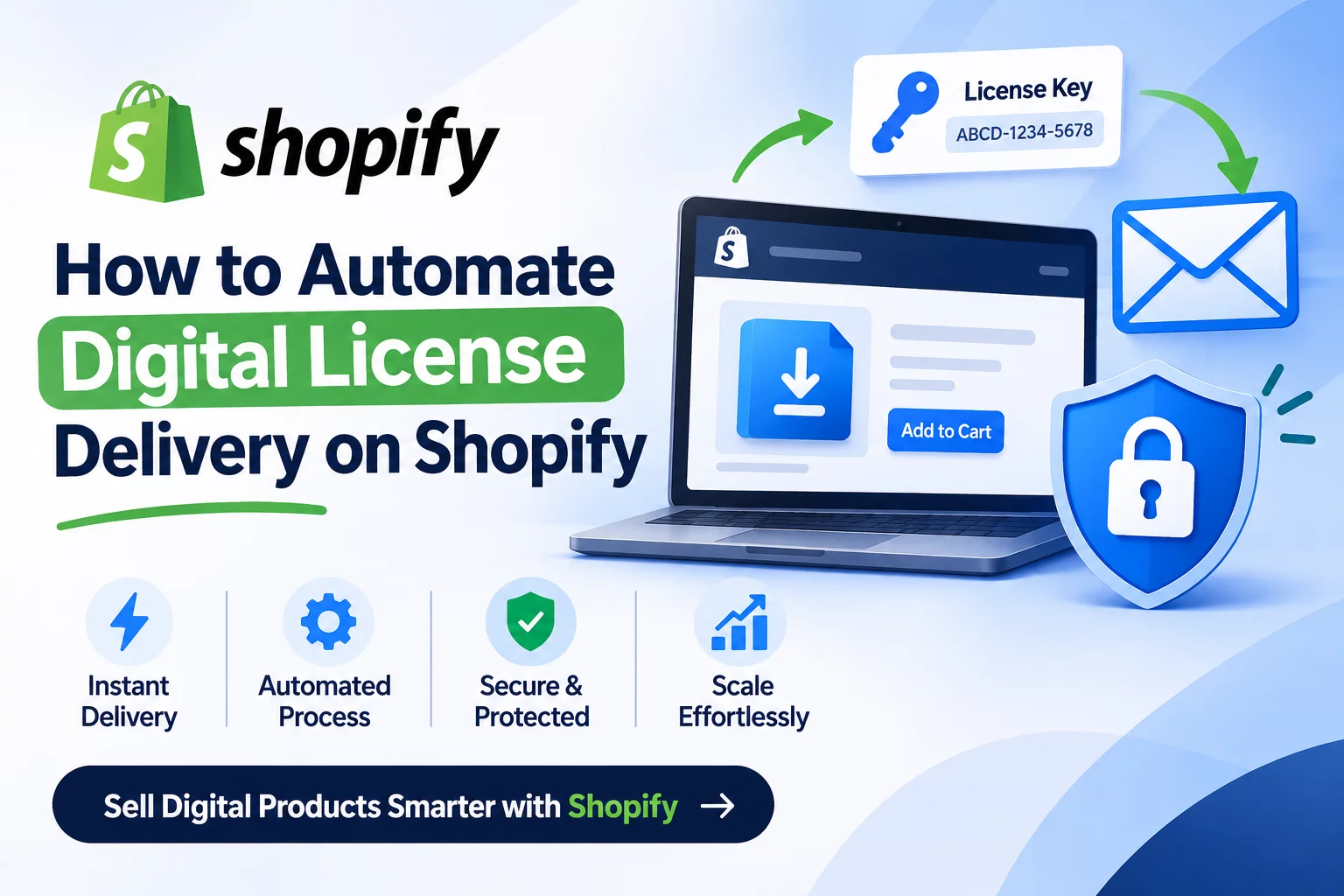
With the right setup, Shopify merchants can automatically assign unique license keys to orders, deliver them through email or download pages, and manage their digital inventory without manual work.
In this guide, you'll learn how to automate digital license delivery on Shopify, how license key automation works, what features to look for, and how to build a more efficient digital product business.
What Is Digital License Delivery?
Digital license delivery is the process of automatically sending unique product keys, activation codes, or license credentials to customers after they purchase a digital product.
These licenses are commonly used for:
- Software activation keys
- SaaS subscription codes
- WordPress themes and plugin licenses
- Antivirus and security software keys
- Game activation codes
- Digital membership keys
- Audio plugins and software tools
- API keys and access credentials
Instead of manually sending each code, an automated system connects your Shopify orders with a license key inventory.
Once a customer completes a purchase, the system assigns an available license and delivers it automatically.
Why Should You Automate License Key Delivery on Shopify?
Manual license delivery might work when you receive only a few orders. But as sales increase, managing everything manually becomes difficult.
Here are some important reasons to automate the process.
1. Deliver License Keys Instantly
Customers expect quick access to digital products. Waiting hours for an activation code can create frustration and unnecessary support requests.
Automated delivery allows customers to receive their unique license keys shortly after successful payment, depending on your store's order and payment settings.
2. Reduce Manual Work
Without automation, you need to:
- Check new Shopify orders.
- Find the correct license key.
- Copy the key manually.
- Send an email to the customer.
- Update your available license inventory.
Automation handles these repetitive tasks, allowing you to focus on marketing, customer support, and business growth.
3. Avoid Duplicate License Keys
Sending the same activation key to multiple customers can cause activation problems and damage customer trust.
A properly configured license delivery system assigns available keys from your inventory and tracks their availability to reduce duplicate assignments.
4. Improve Customer Experience
Instant delivery gives customers a smoother buying experience.
They can receive their license information through an email or a dedicated download page without waiting for manual assistance.
5. Scale Your Digital Product Business
As your business grows, order volume increases. Automated license delivery helps you manage more orders without increasing your manual workload at the same rate.
How Does Automated License Delivery Work on Shopify?
The process is straightforward when you use a dedicated digital delivery app.
Here is how the typical workflow operates:
Step 1: Customer Purchases a Product
A customer visits your Shopify store and purchases a software license, activation code, or subscription key.
Step 2: Shopify Processes the Order
Shopify processes the order according to your payment and fulfillment settings.
Step 3: A License Key Is Assigned
The digital delivery app selects an available license key from the inventory associated with the purchased product.
Step 4: The License Key Is Delivered
The assigned key is sent to the customer through an automated email or displayed on an appropriate digital delivery page.
Step 5: License Inventory Is Updated
The system tracks assigned and remaining keys so you can manage your available inventory.
How to Automate Digital License Delivery on Shopify
Now let's look at how you can set up an automated license delivery workflow for your Shopify store.
Step 1: Create Your Digital Product in Shopify
First, create the product you want to sell.
For example:
- Windows software activation key
- Antivirus subscription license
- WordPress plugin license
- Audio plugin activation code
- Online membership key
Add a clear product title, description, pricing, and relevant product images.
Make sure customers understand what they will receive after purchasing.
Step 2: Install a Digital License Delivery App
Shopify's standard product management system is designed primarily for managing products and orders. To automate license key distribution, you can use a dedicated digital delivery app.
Choose an app that supports:
- Automatic license key assignment
- Bulk license key imports
- Unique codes for individual orders
- Automated email delivery
- License inventory management
- Customizable delivery templates
- Download and access controls
A dedicated app makes it easier to connect your product catalog with your license inventory.
Step 3: Upload Your License Keys
After setting up your digital delivery app, prepare your license key inventory.
You can organize your keys in a CSV file, with one unique license key per row.
For example:
Product | License Key |
Antivirus Pro | AVP-2026-001 |
Antivirus Pro | AVP-2026-002 |
Antivirus Pro | AVP-2026-003 |
Plugin License | PLG-2026-001 |
Import your keys into the relevant product.
Bulk CSV importing is particularly useful when you have hundreds or thousands of activation codes to distribute.
Step 4: Connect License Keys to Your Shopify Products
Assign the uploaded license inventory to the correct Shopify products.
For example:
- Antivirus Pro → Antivirus activation keys
- Premium Plugin → Plugin license keys
- Membership Plan → Subscription access codes
This ensures customers receive the correct license after purchasing a particular product.
Double-check your product mapping before enabling automated delivery.
Step 5: Configure Automated Email Delivery
Set up an email template that explains how customers can access and activate their purchases.
Your email should include:
- Order confirmation information
- Assigned license key
- Product name
- Activation instructions
- Customer support information
You can customize the email to match your store's branding and make the instructions easy to understand.
Step 6: Test Your Delivery Workflow
Before launching, place a test order and check the complete delivery process.
Verify that:
- The correct license key is assigned.
- The customer receives the delivery email.
- The key is displayed correctly.
- The inventory updates as expected.
- The activation instructions are clear.
Testing helps prevent delivery problems when real customers start purchasing.
Important Features to Look for in a License Delivery App
Not every digital delivery app offers the same capabilities. If you're planning to sell license keys at scale, consider these important features.
Bulk License Key Import
Uploading keys individually can be difficult when managing a large inventory.
Look for CSV import and export functionality that allows you to manage hundreds or thousands of license codes more efficiently.
Automatic Key Assignment
Your app should automatically assign a unique available key to each eligible order.
This reduces manual errors and helps prevent accidental duplicate distribution.
License Availability Tracking
Tracking available and assigned license keys helps you understand your remaining inventory.
It also helps you identify when a product is running low on available codes.
Custom Email Templates
Branded emails create a more professional customer experience.
Look for customizable templates that allow you to include license keys, activation instructions, and other relevant order information.
License Validation
If you sell software or activation-based products, license validation can help verify whether a key is valid through a supported validation system or API.
This is particularly useful for merchants offering software that requires activation or ongoing access management.
Download and Access Protection
For products that include downloadable files alongside license keys, consider additional security features such as download limits, expiring links, and protected file delivery.
Automate License Key Delivery with Digitally
Managing digital licenses manually doesn't have to be part of running a Shopify store.
Digitally – Digital Products helps Shopify merchants automate the delivery of digital files, software licenses, activation codes, subscription keys, and other digital products.
Instead of manually assigning and emailing license keys, you can organize your license inventory and configure automated delivery.
With Digitally, you can:
- Automatic License Key Delivery: Deliver digital license keys to customers after eligible purchases.
- Bulk CSV Import and Export: Upload and manage large collections of license keys.
- License Availability Tracking: Monitor available license inventory with supported Plus and Unlimited plans.
- Custom Email Templates: Customize delivery emails for a branded customer experience.
- Download Limits and Expiring Links: Add access controls for downloadable digital files.
- License Key Validation API: Support license validation workflows for compatible integrations.
- Secure File Hosting: Deliver digital files alongside your license keys.
Whether you're selling software activation codes, plugin licenses, subscription keys, or game codes, Digitally helps simplify digital product management and delivery.
Final Thoughts
Automating digital license delivery on Shopify is an effective way to save time, reduce manual errors, and improve the customer experience.
By using automatic key assignment, bulk CSV imports, customized email templates, and license inventory tracking, you can build a more reliable delivery workflow.
The key is to choose a system that fits your products, test your setup, and keep your license inventory organized.
If you're ready to spend less time managing individual orders and more time growing your business, automated digital license delivery is a smart step forward.
With the right tools, you can make selling digital licenses on Shopify easier, faster, and more scalable.
Frequently Asked Questions
You can automate license delivery by installing a digital product delivery app, uploading your license keys, connecting them to Shopify products, and configuring automatic email delivery.
Shopify merchants can use a third-party digital delivery app to assign and send software activation keys automatically after eligible purchases.
Yes. Apps that support bulk CSV importing allow merchants to upload hundreds or thousands of license keys instead of adding them individually.
Digitally helps Shopify merchants automatically deliver license keys, import and export keys through CSV files, customize delivery emails, and manage license availability with supported plans.
Yes. You can sell subscription codes, software activation keys, plugin licenses, game codes, and other digital credentials using a suitable digital delivery solution.
Use a system that assigns available keys from organized inventory, tracks assigned keys, and helps prevent duplicate distribution. Regularly review and update your license inventory.
Shopify digital license delivery
Digital Products
License Keys
Digital Delivery
Software Licenses
digitally

Digitally ‑ Digital Products
Sell files, e-books, license keys, promo codes & digital links
 Install Now